
Aeon Timeline 3.5 brings one of our biggest updates yet, with fully customizable tabbed views, tailored inspector layouts, and more streamlined editing all around.
Unlimited Custom Views
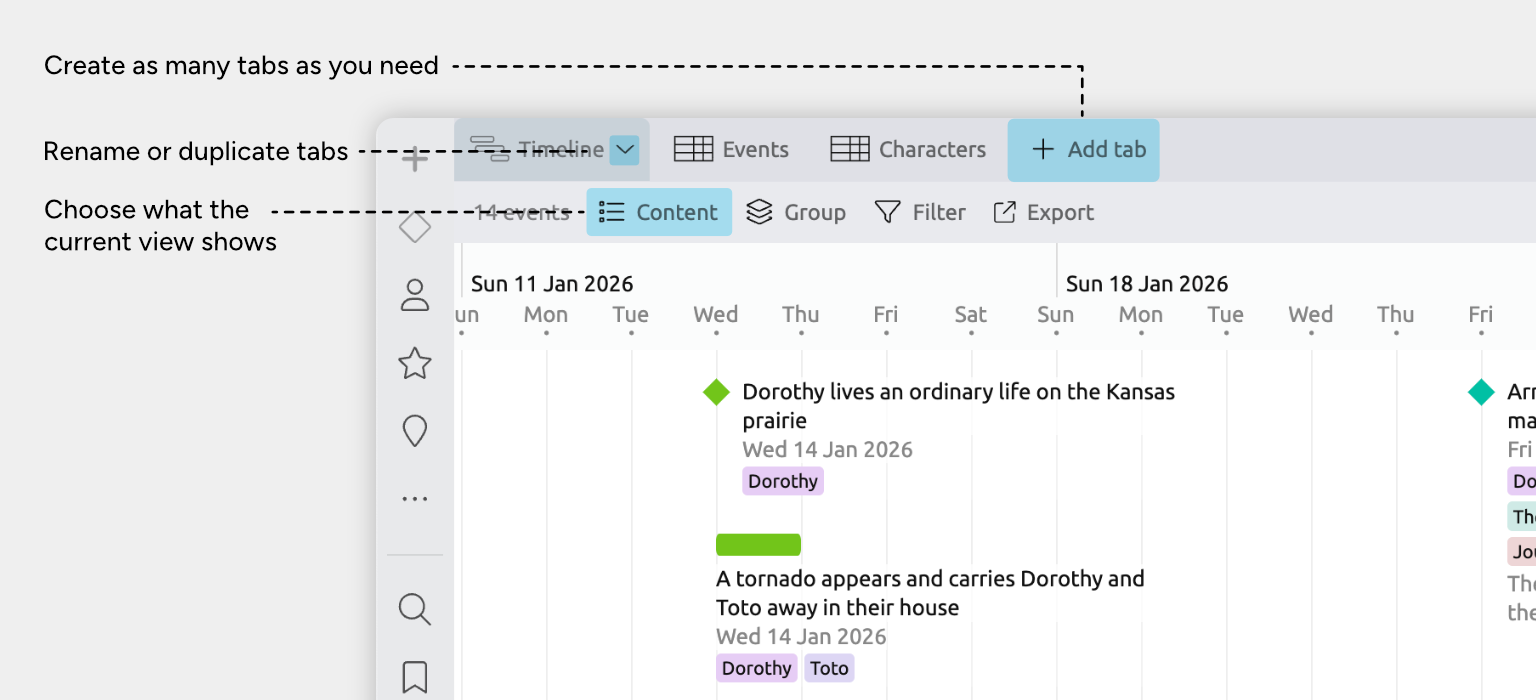
Aeon Timeline 3.5 replaces the fixed set of views with tabbed views, so you can build a workspace that matches how you think and work.
You can:
- Create as many tabs as you like
- Rename tabs and assign custom icons
- Choose the view type and content shown in each tab
Views across the app are now also more flexible and consistent:
- Narrative order in more views
Relationship and Subway views can now be displayed in narrative order.
Available under + Add Tab - List view on all devices
The List view is now available on Mac, Windows, and iPad, not just iPhone.
Available under + Add Tab - Grouping in more views
Group items in Spreadsheet, Relationship, and List views.
Available under Group in the view header - Advanced filtering and grouping
Choose whether nested or related items are included when filtering or grouping.
Available under Options at the bottom of the Filter and Group panels - Updated for iPhone
On iPhone, tabs now mirror the same tab setup as desktop.
Learn more about managing tabs →
Your Fields, In Your Order
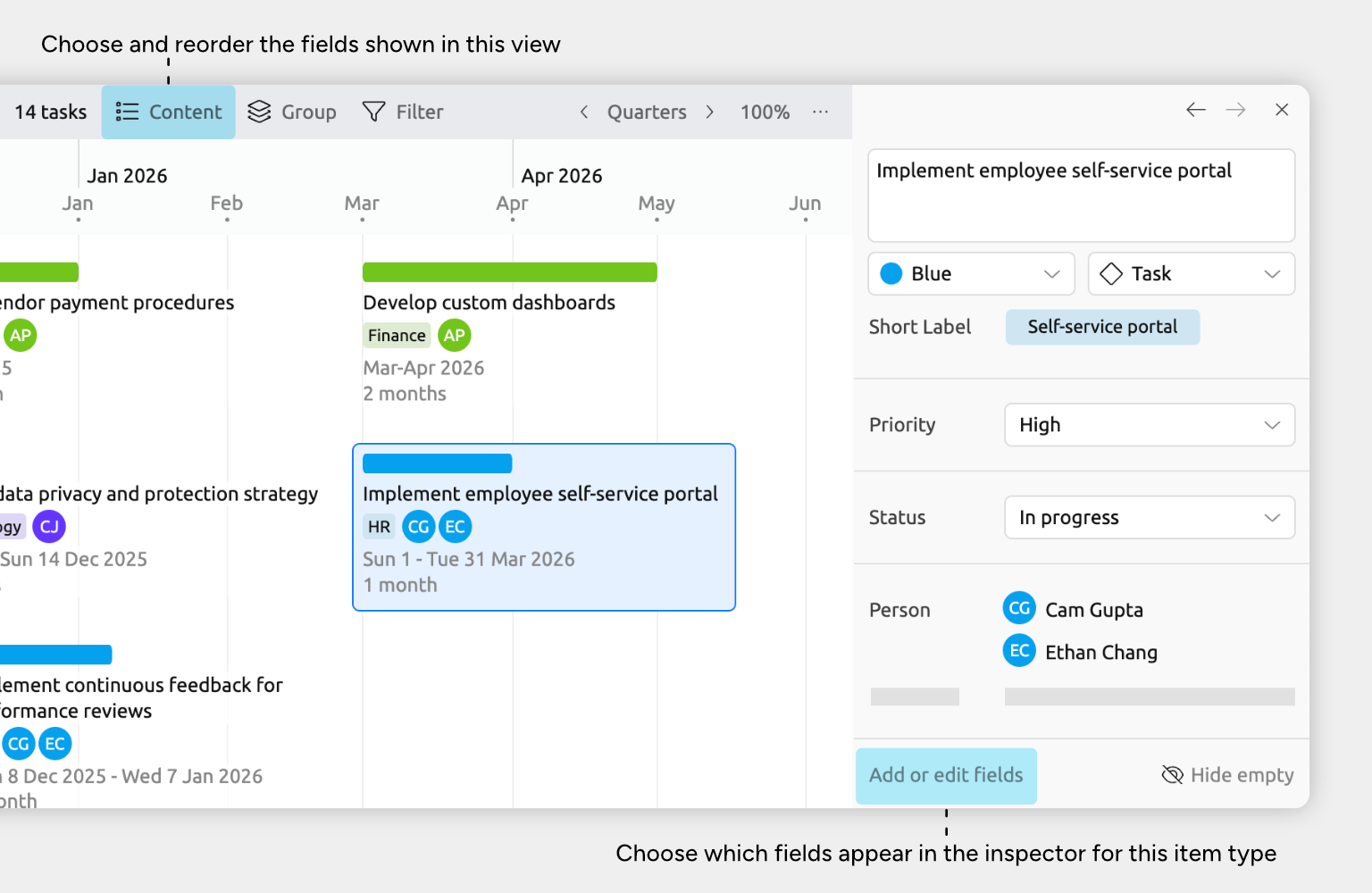
See the information that matters most, first. You can now choose exactly which fields appear in the inspector for each item type.
- Show only the fields you need
- Reorder fields so important information appears first
You also have more control over how fields are displayed:
- Reorder item card fields
In Timeline, Narrative, Relationship, List, and Mindmap views, you can reorder the fields shown on item cards — keeping key information front and center wherever you’re working.Available under Content in the view header - Limit text and list length
Control how many related items or lines of text are shown for fields.
Available under Content > Card options in the view header for views, or under Add or edit fields for the inspector. - Easily hide empty fields
Use the Hide Empty button at the bottom of the inspector to temporarily hide fields with no content. - Easily see hidden data
If a selected item has additional data that isn’t currently visible, the collapsible Other Fields section at the bottom of the inspector lets you access it — or tuck it away when you’re done.
Helpful Visual Options
Show Progress on the Timeline
You can now visually show task progress in the Timeline View.
To use, go to Settings > Properties > Create a Percentage property and set it to “Indicate Item Completion”.
Learn more about showing progress on the timeline →
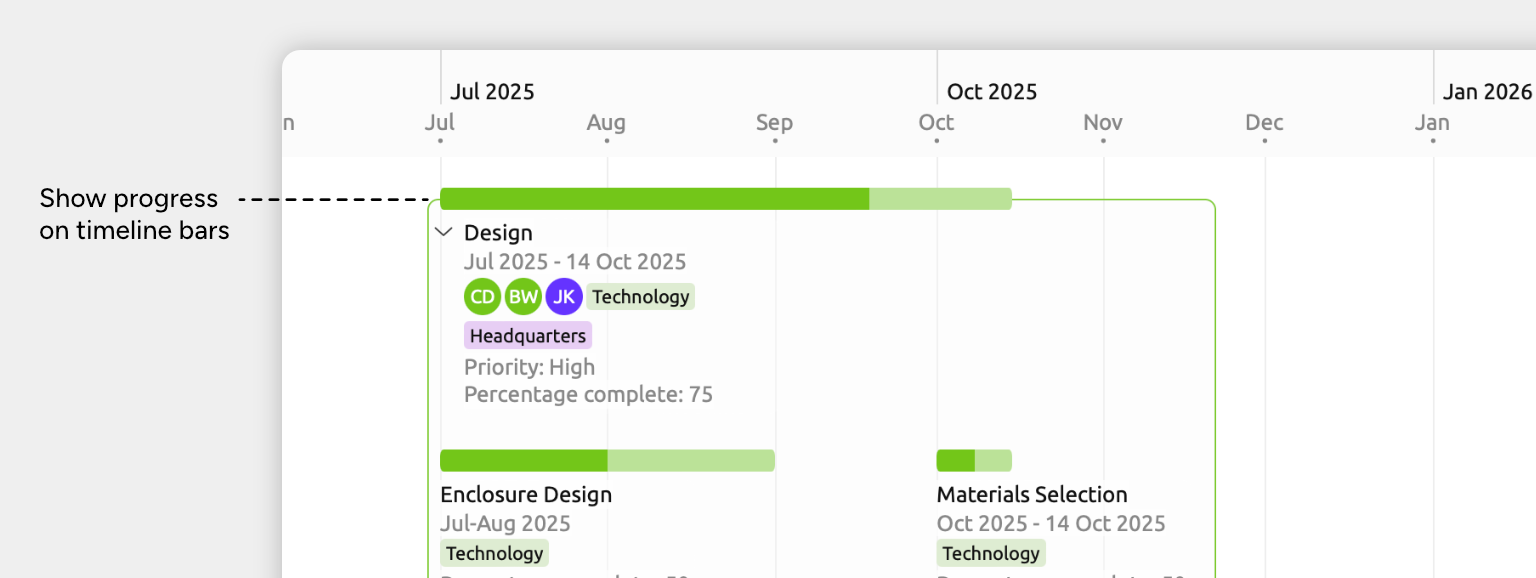
Image avatars
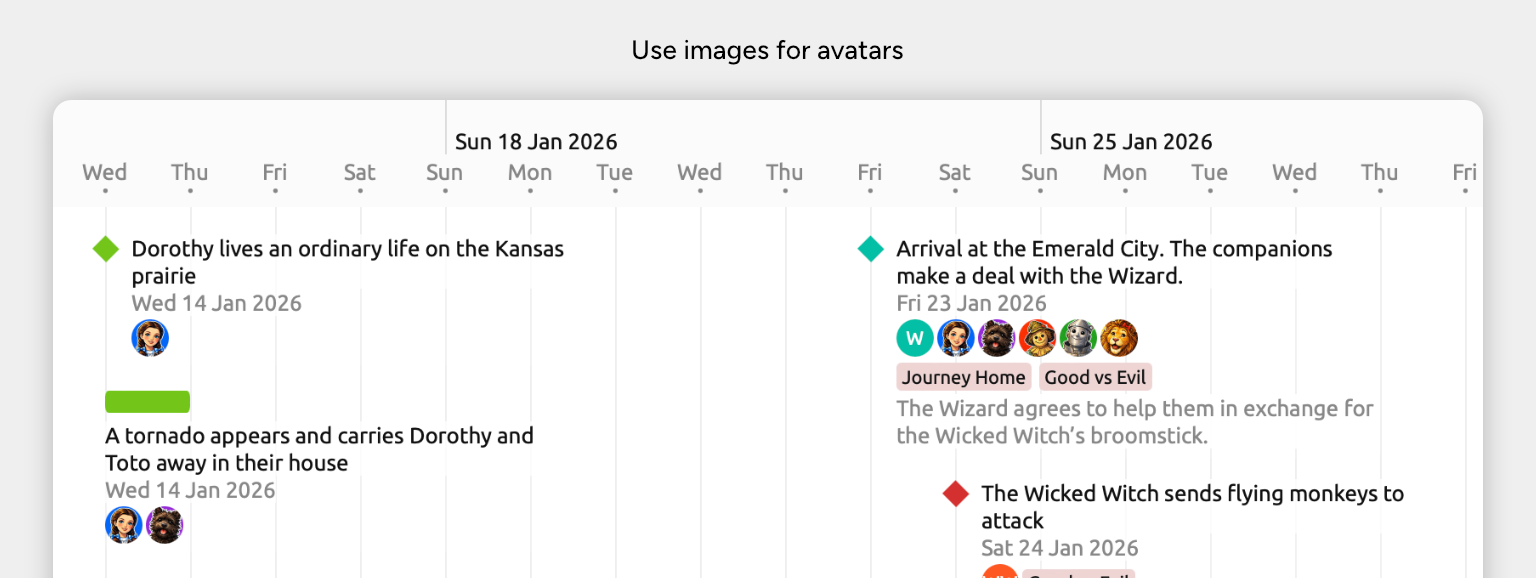
Use image avatars in labels and cards.For consistency, items of types that use avatars will now always show their avatars instead of an icon.
To use, go to Settings > Item Types > Under Compact Display, select “Avatar” and Check “Use Image Avatars”
Learn more about showing image avatars →
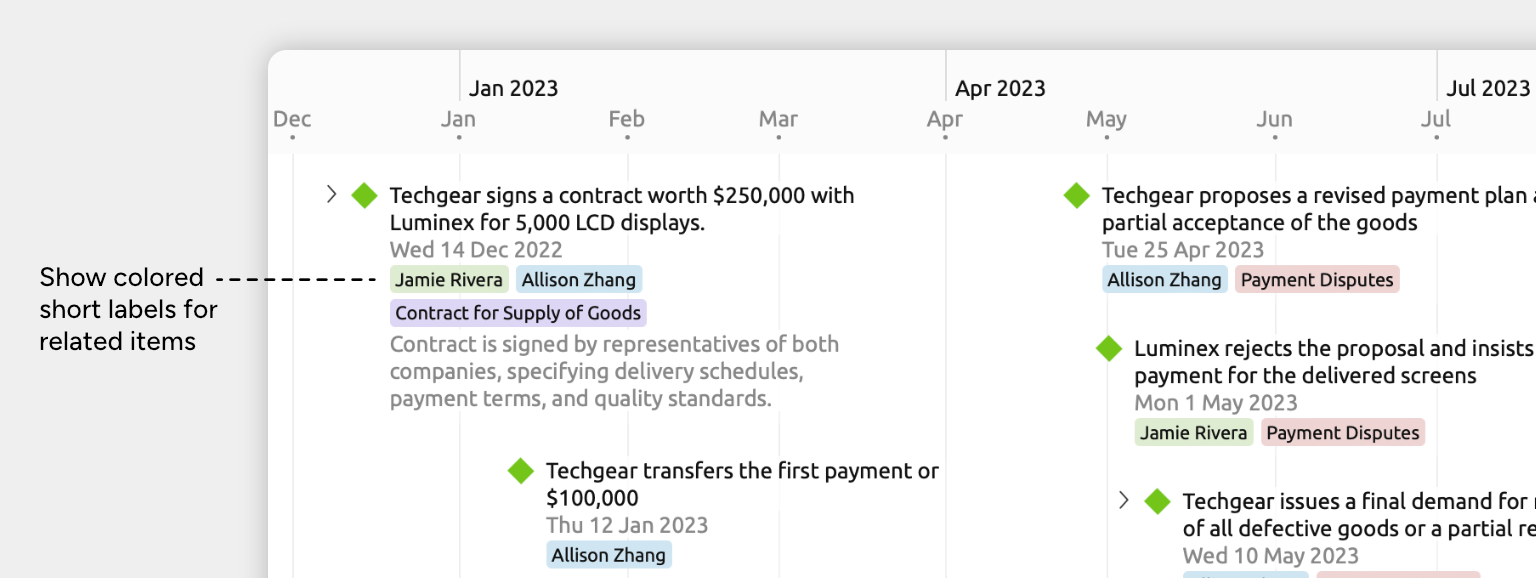
Colored short labels
Short labels can now be shown in their colors, in addition to the greyscale option.
To use, go to Settings > Item Types > Under Compact Display, select Short Label and deselect Greyscale.
Smarter Date Handling
Automatic Nested Dates
Containing items now automatically adjust their date ranges to include the dates of their nested events and items.
- Move a nested item beyond its containing item’s date range, and the containing item expands to include it.
- Move a nested item that defines the start or end of the containing item inward, and the containing item shrinks to match the new range. If that isn’t what you intended, you can undo once to revert the containing item’s automatic date change, then undo again to revert the initial change.
Note: When opening existing files, any containing items whose dates don’t fully span their nested items will be updated automatically.
Learn more about nested dates →
Default Timescale Options
When setting the timescale, you can now quickly choose common defaults, such as Year, Month, or Day, in addition to using the custom slider.
Live Date Previews
When an edit affects other dates or durations, those changes are previewed live, so you can see the impact of your edits as you work.
Duration Calculation Options
You can now choose how durations are calculated for each event or item. This new option lets you control whether a duration is calculated up to the start of the end date or up to the end of the end date, so the resulting duration matches how you think about time in your project
For example:
- From 2010 to the start of 2020 = 10 years
- From 2010 to the end of 2020 = 11 years
Available under Date > Options > Duration Calculation in the inspector
Learn more about duration calculation options →
Navigate and Edit More Easily
Selection History
Back and forward buttons at the top of the inspector let you go back or forwards to previously selected events and items.
Sticky Timeline Labels
The item cards for long-running events now remain visible when scrolling horizontally.
Double-Click to Edit Text in Place
Double-click summaries and text properties in item cards to edit them in place.
Double-Click to Select Related Items
Double-click related items in the inspector to select them, or in item cards to edit the relationships.
Settings Improvements
Simplified Relationships
All item types are now automatically available as fields you can select to show in the inspector.
Previously, you’d need to configure a relationship type for this.
Where to find it: Go to Settings >Item Types to pick which fields to show in the inspector.
You can still define custom relationships if you want a different name (e.g. categorizing characters as Participants or Observers), or if each side of the relationship should have a different label (e.g. Causes and Caused By).
Where to find it: This still lives under Settings > Relationships.
Convert Item Type and Relationship Data Options
When deleting item or relationship types from the settings, there’s now an option to convert existing data so you can more easily tailor your file without losing work.
Try Aeon Timeline free for 14 days
Get Aeon Timeline and easily visualize and organize your project.