
Story Timelines
Getting Started
Writing a story means juggling a lot at once: what happens when, who’s involved, how events connect, and whether everything still makes sense three drafts later.
Aeon Timeline is designed to help you hold all of that in one place, without locking you into a single way of planning or writing.
Whether you’re outlining a new idea, untangling a complex draft, or managing a multi-book series, this guide will help you learn how Aeon Timeline can support and strengthen the way you plan your stories.
Choose a Template
When you create a new file, you’ll start by choosing a template.
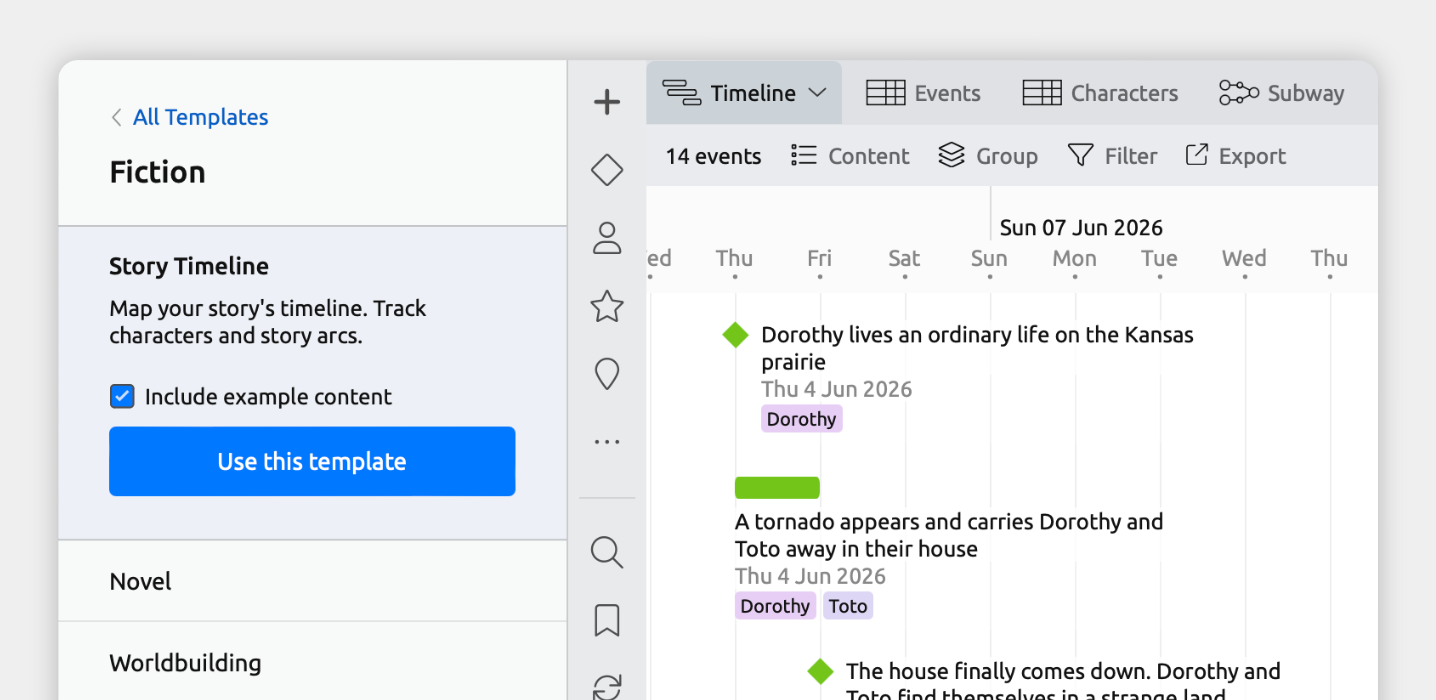
Templates are simply starting points. They provide starting views and setups, so you can start working right away without having to set everything up from scratch.
You don’t need to find the “perfect” template. Whichever one you choose, you can change it at any time to better fit your story. If you later prefer the structure or layout of a different template, you can adjust your existing file to work the same way.
Here’s a breakdown of the key features of the various writing templates:
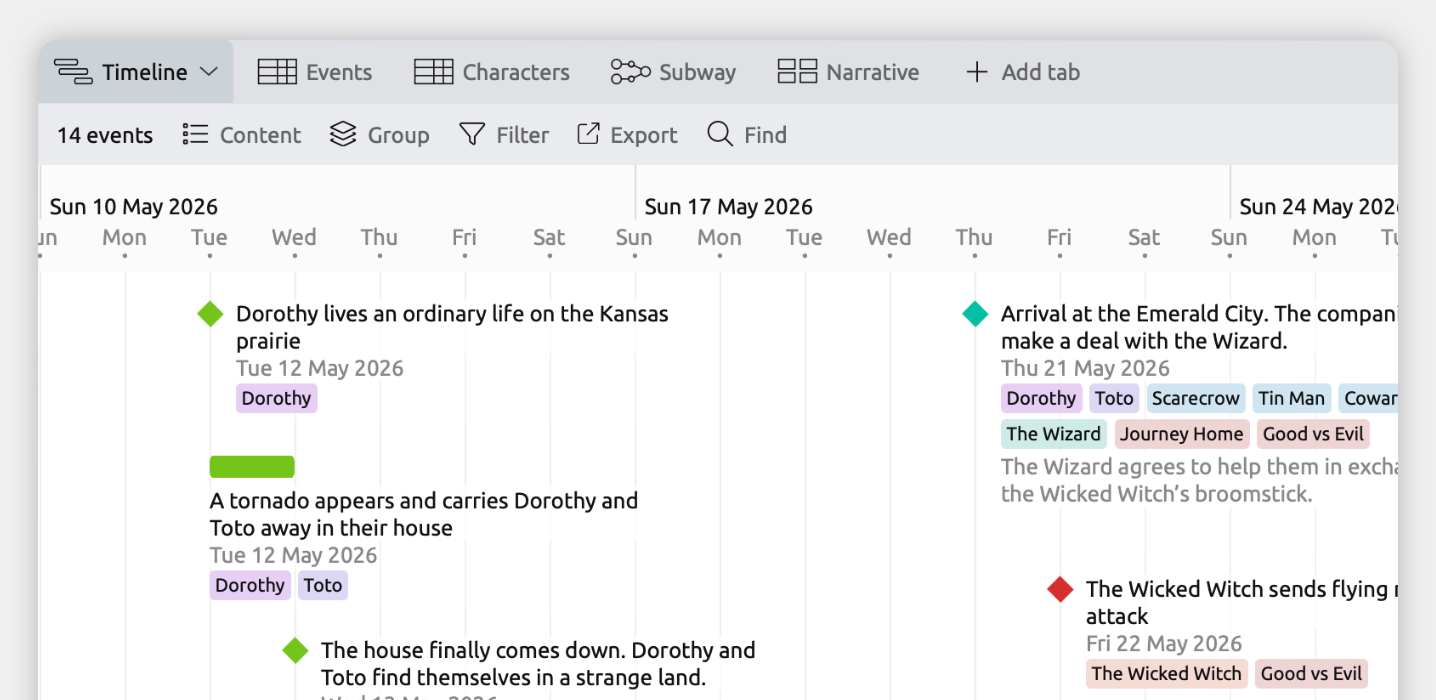
This template gives you a ready-made structure for planning a story timeline.
- Add events to a timeline to track when they happen.
- Track characters and organize them into groups.
- Manage story arcs and locations, and link them to related events.
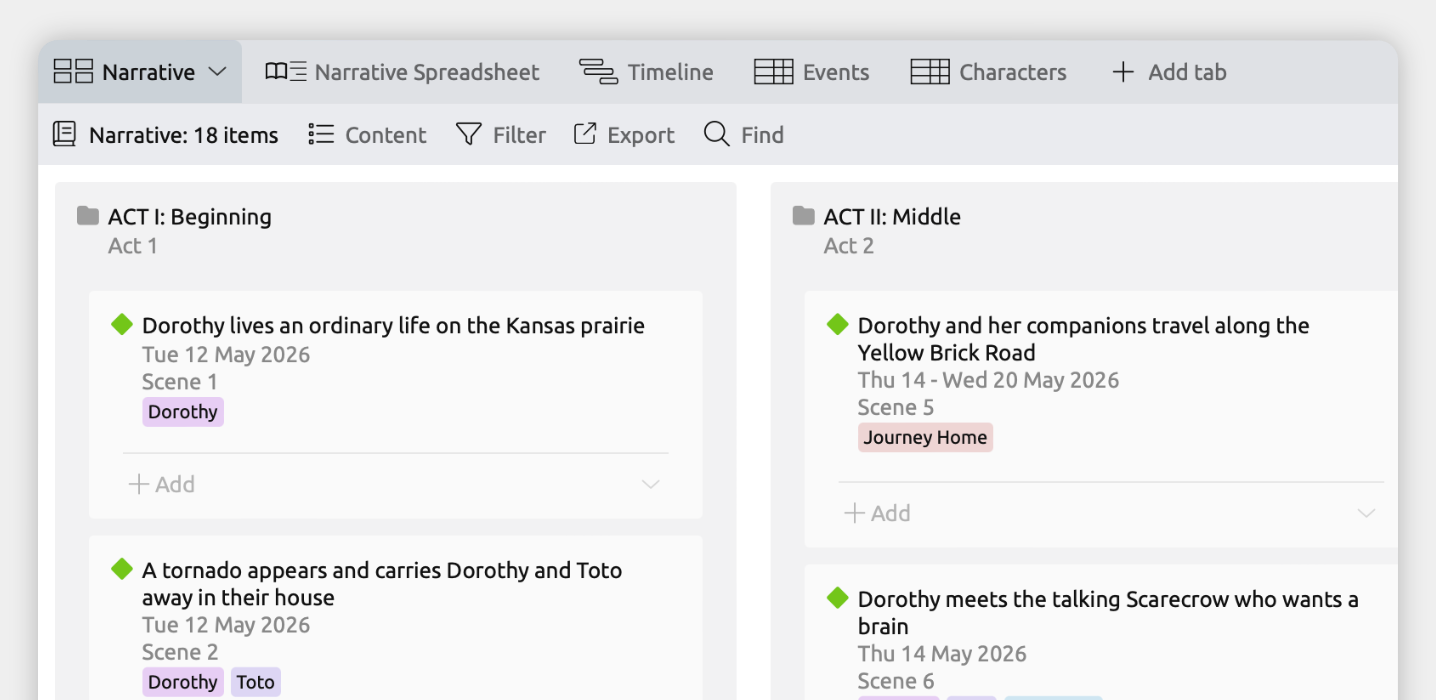
This template lets you plan both your timeline and your story structure in one place. It’s built for writers who want to organize events both by when they happen, and by how they are organized into chapters, acts, or other sections.
- Add events to a timeline to track when they happen.
- Select which events appear in your story and arrange them into folders for chapters, acts, or other sections.
- Track characters and organize them into groups.
- Manage story arcs and locations, and link them to related events.
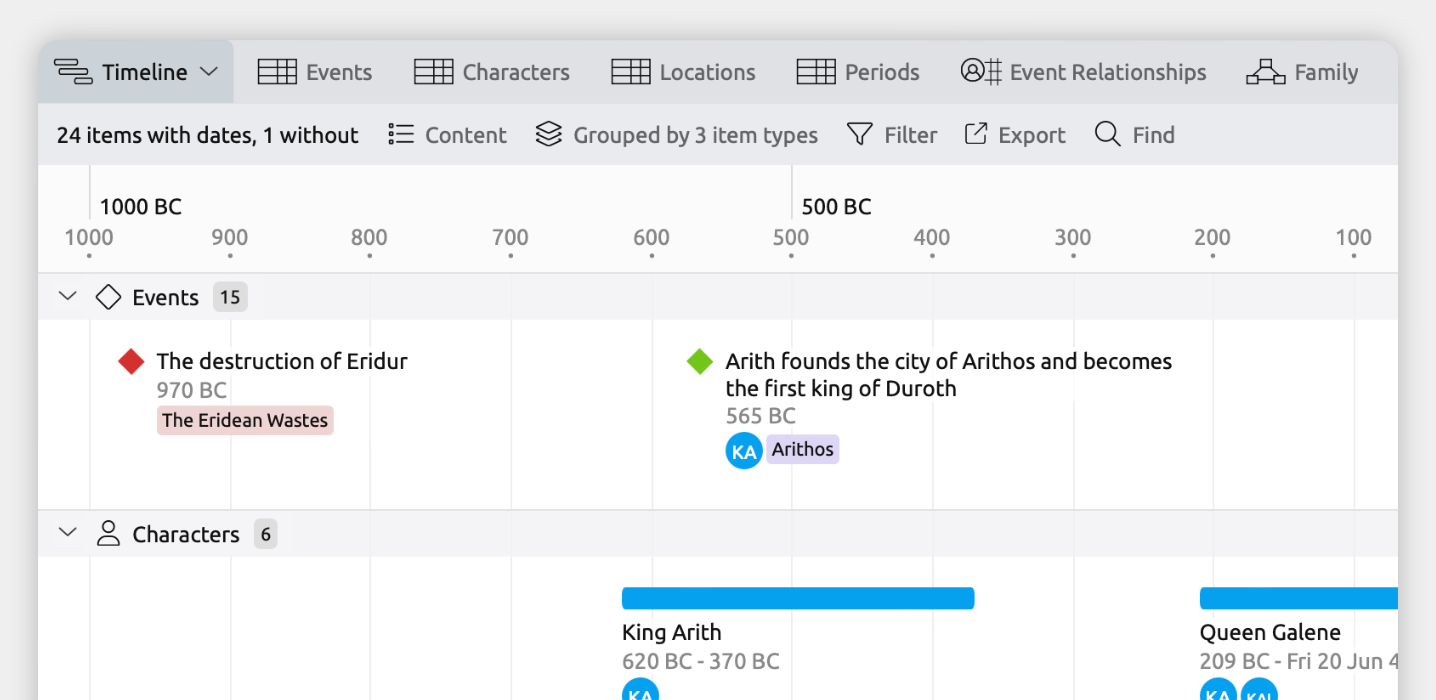
This template helps you organize your world’s history, characters, and key elements all in one place.
- Add events to a timeline to map out your world’s history.
- Add characters, group them, and track how they are related to each other.
- Show important historical periods directly on the timeline.
- Display character lifespans alongside major events.
- Manage lists of locations and artifacts, and link them to related events.
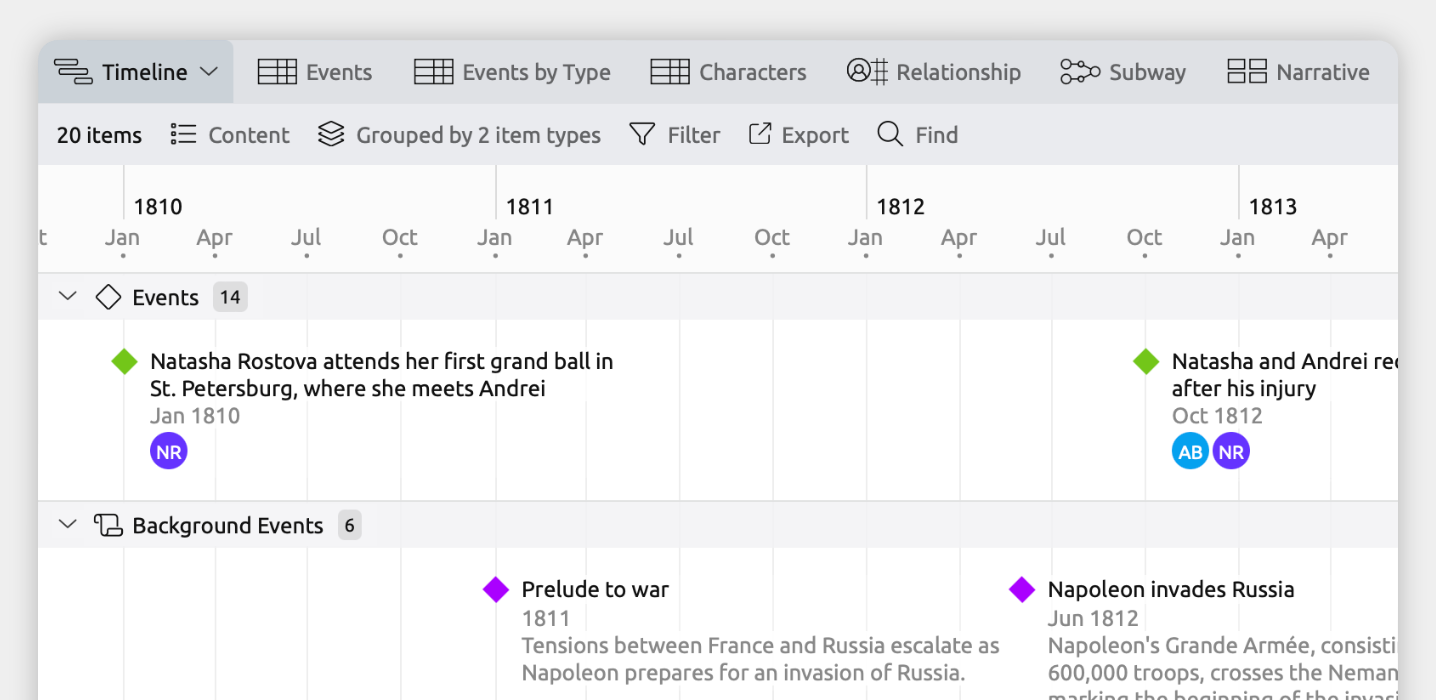
This template is designed for stories set within real historical contexts. It lets you view your story’s events alongside real-world history on the same timeline.
- Add story events and historical events to side-by-side timelines.
- Track characters and organize them into groups.
- Manage story arcs and locations, and link them to related events.
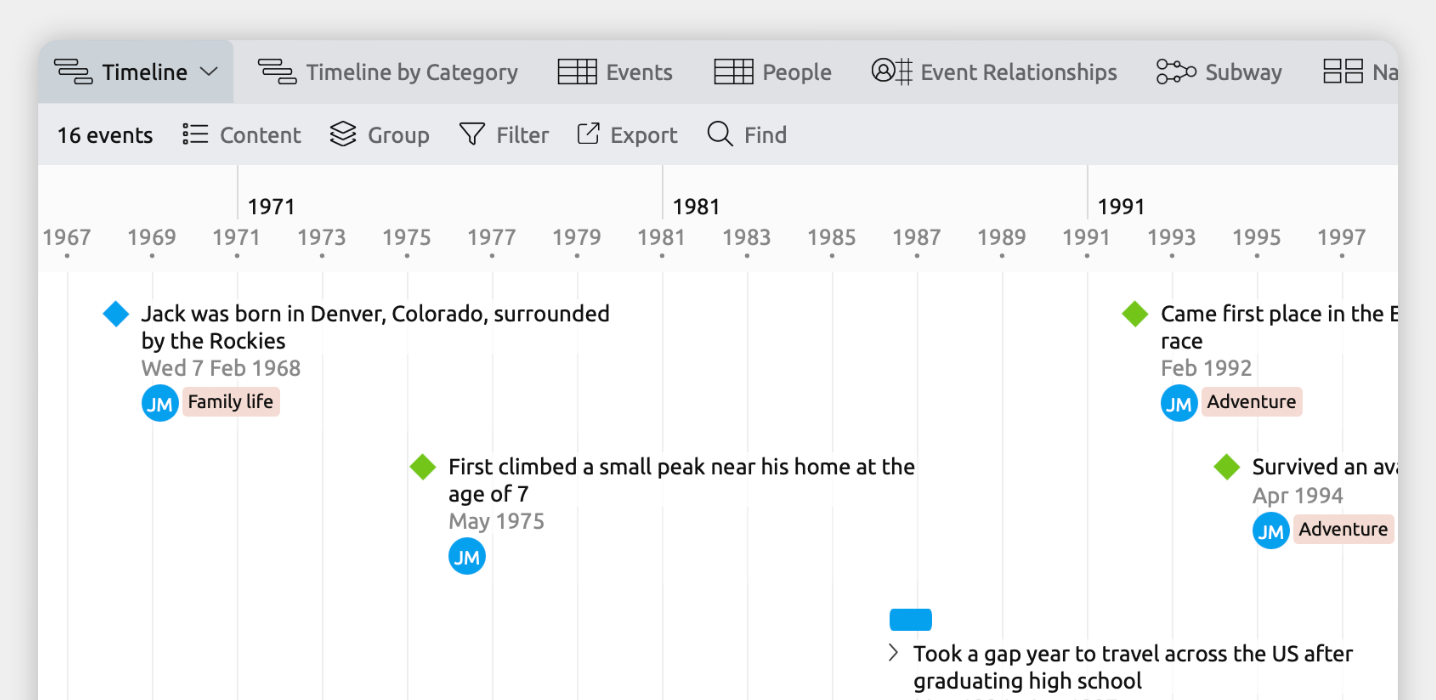
This template helps you cleanly organize a person’s life on a timeline.
- Add life events to a timeline.
- Track the people and locations connected to each event.
- Add categories to organize events, for example to separate personal, educational, and career events.
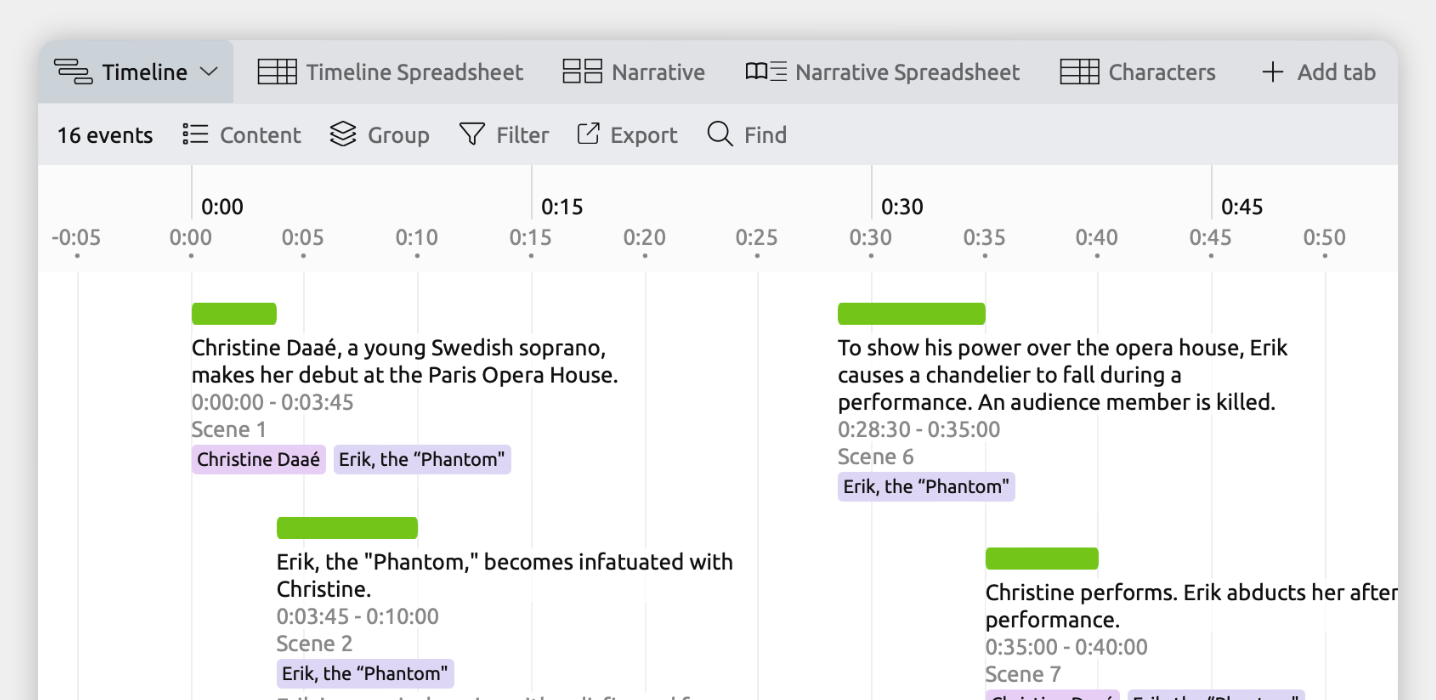
This template tracks time using timestamps instead of calendar dates (for example, 01:15:00).
- Add events to a timeline that counts the time passed.
- Track characters and organize them into groups.
- Manage story arcs and locations, and link them to related events.
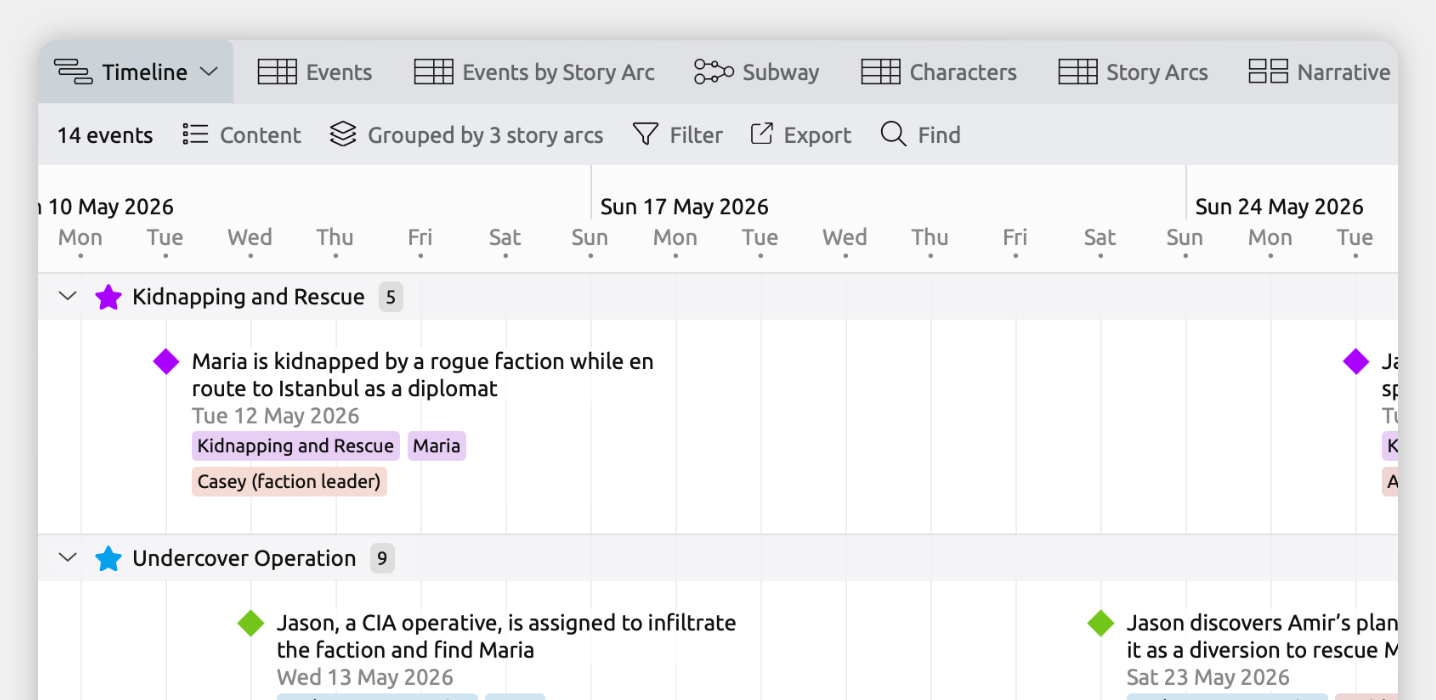
This template is built for stories with multiple plotlines. It lets you follow each thread clearly, and see how they overlap across your timeline.
- Add events to a timeline and view them grouped by story arc.
- Track characters and organize them into groups.
- Manage locations, and connect them to events.
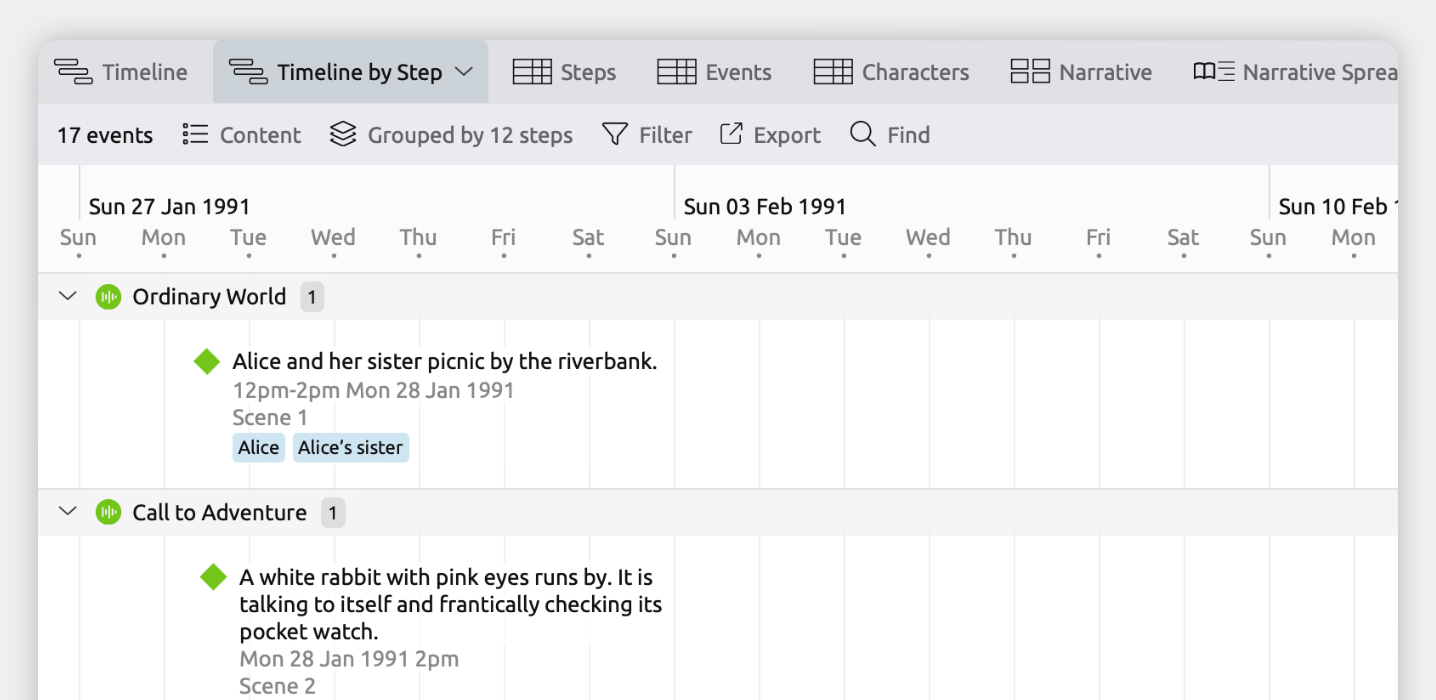
This template organizes your timeline around the steps of the Hero’s Journey.
- Add events to a timeline and see them grouped by each stage of the journey.
- Customize the structure to match any writing framework you’re using.
- Track characters and organize them into groups.
- Manage story arcs and locations, and link them to events.
- Select which events appear in your story and arrange them into folders for chapters, acts, or other sections.
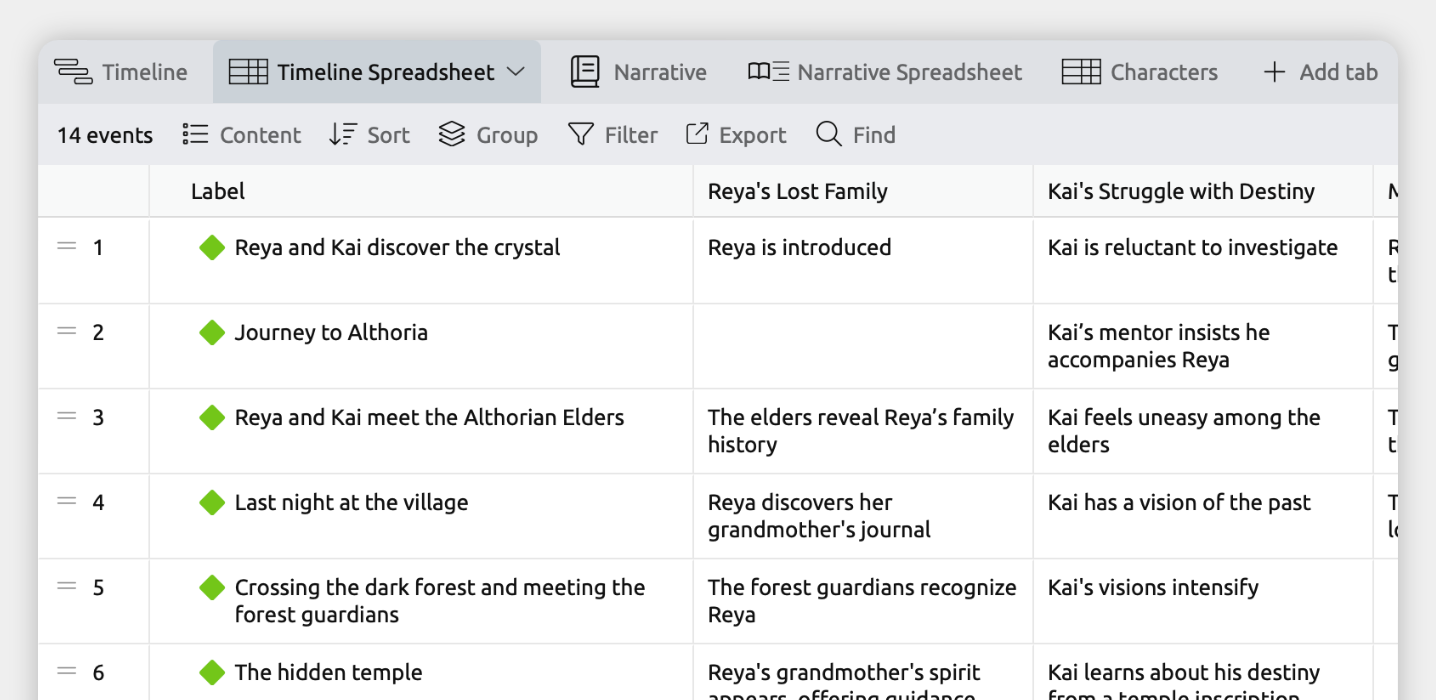
This template lets you record how different themes, threads, or plotlines progress event by event in a clear table layout.
- Add events to a timeline.
- Add notes to each event for different themes, threads, or plotlines in a table.
- Track characters and organize them into groups.
- Select which events appear in your story and arrange them into folders for chapters, acts, or other sections.
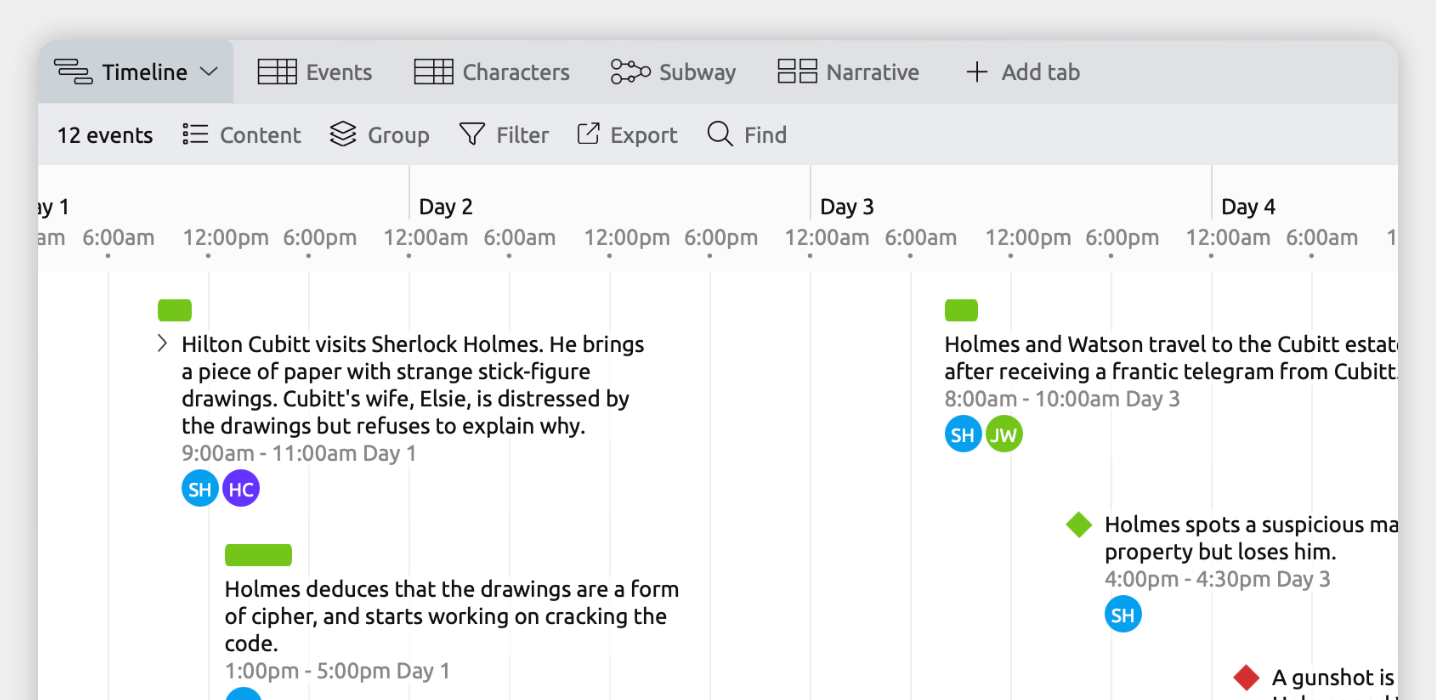
This template tracks time using numbered days instead of calendar dates (for example, 5pm Day 1).
- Add events to a timeline that counts day numbers.
- Track characters and organize them into groups.
- Manage story arcs and locations, and link them to related events.
Key Concepts
There are three key concepts that will help you shape Aeon Timeline to work the way you want: item types, fields, and views.
Together, these let you decide what information you track, and how you visualize and work with your timeline.
Item Types
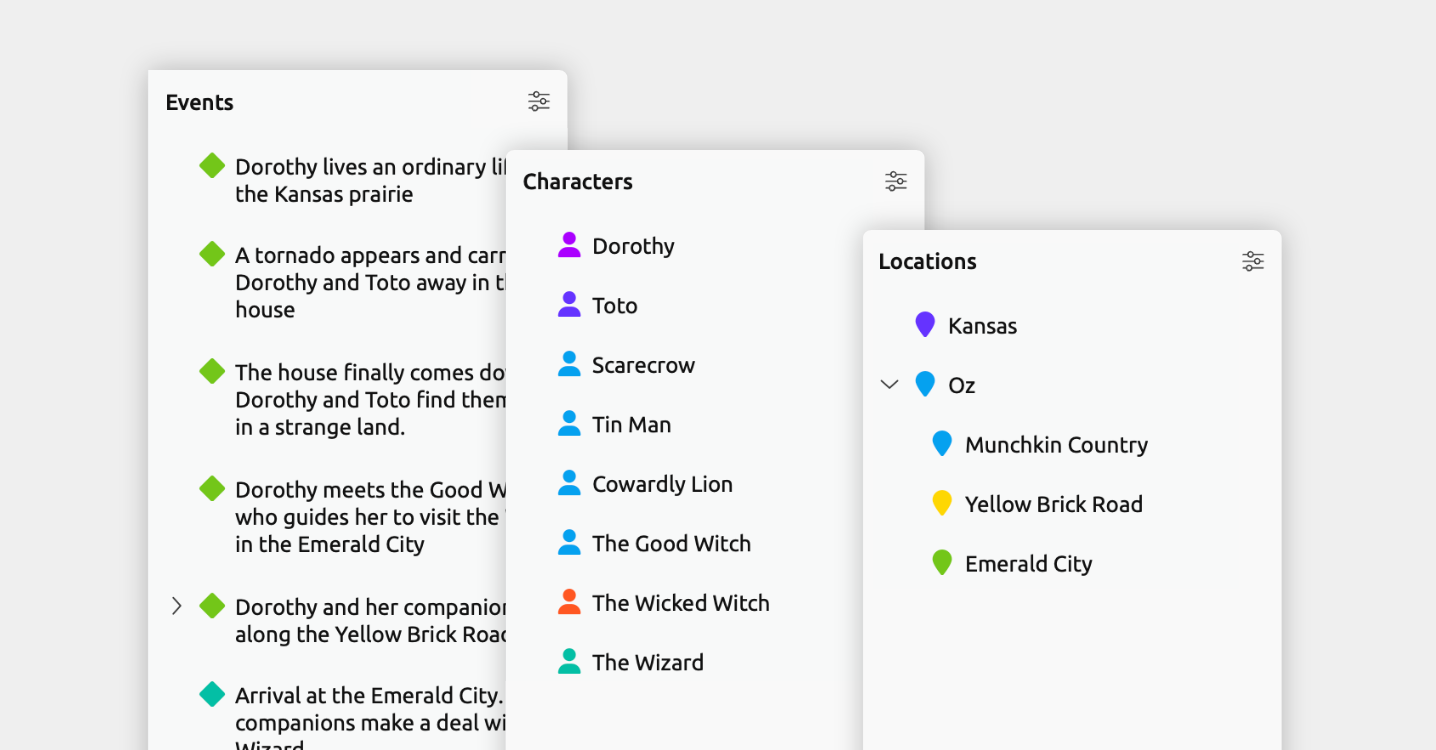
Item types are the categories of information you track in your project.
For a story, that might include:
- Events
- Characters
- Story arcs
- Locations
- Anything else your story needs
You decide what those categories are. Item types are fully customizable, so you can track exactly the kinds of information that matter to your story — and build a timeline that makes sense to the way you think and plan.
To learn more about how item types are used in the app and how to customize them, see the Customize Item Types guide.
Different Views
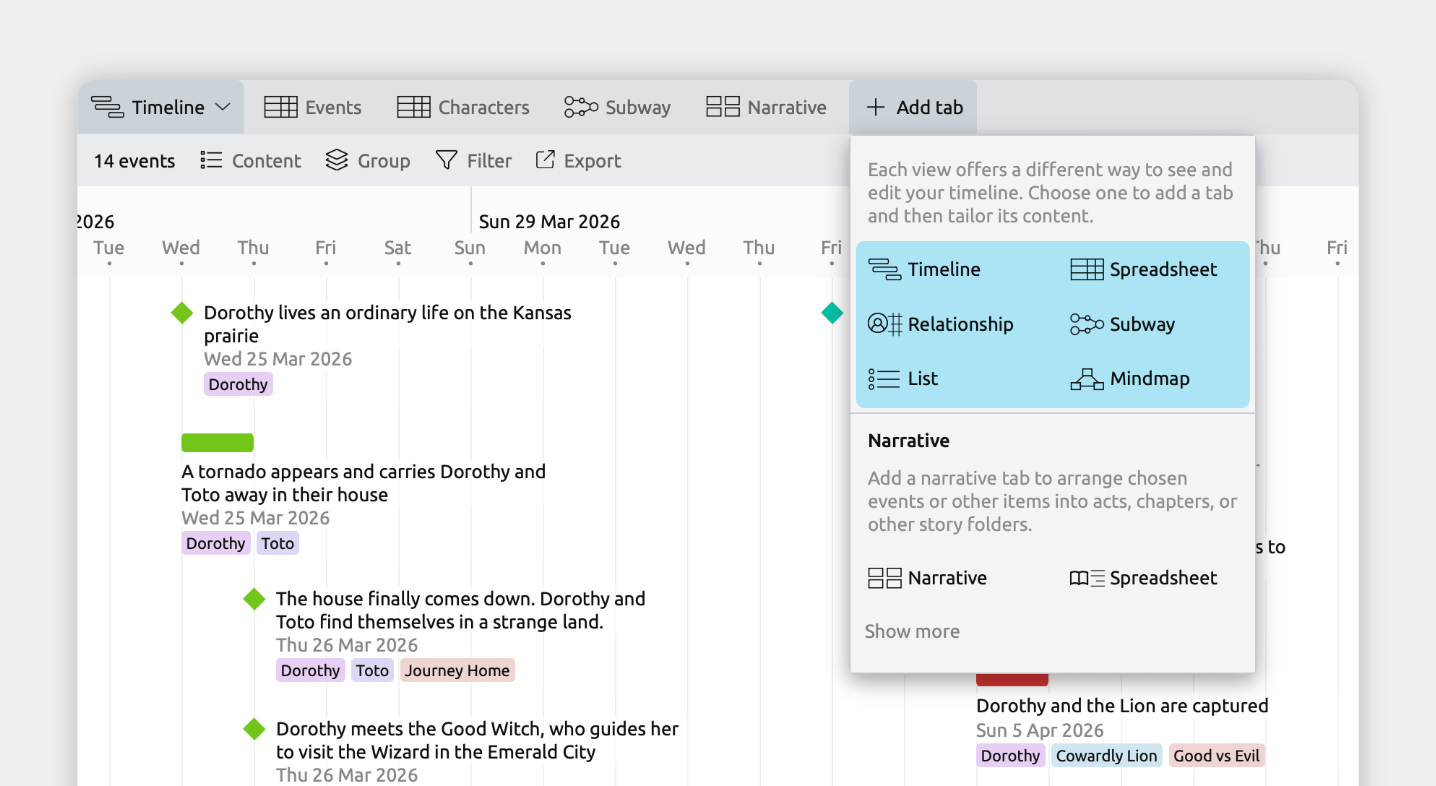
Aeon Timeline’s views let you see the same story information in different ways.
For example, you might use the Timeline view to see your events laid out visually over time, or the Spreadsheet view to edit details in a table. These are just two examples — each view offers a different way to work with the same underlying story.
Views don’t duplicate your data. If you update an event in one view, that change appears everywhere.
You can also use the same view type in multiple tabs. For example, you might keep a spreadsheet of events, and another of your characters, so you can move between them easily while you work.
To learn more about what views are available, see the Different Views guide.
Fields
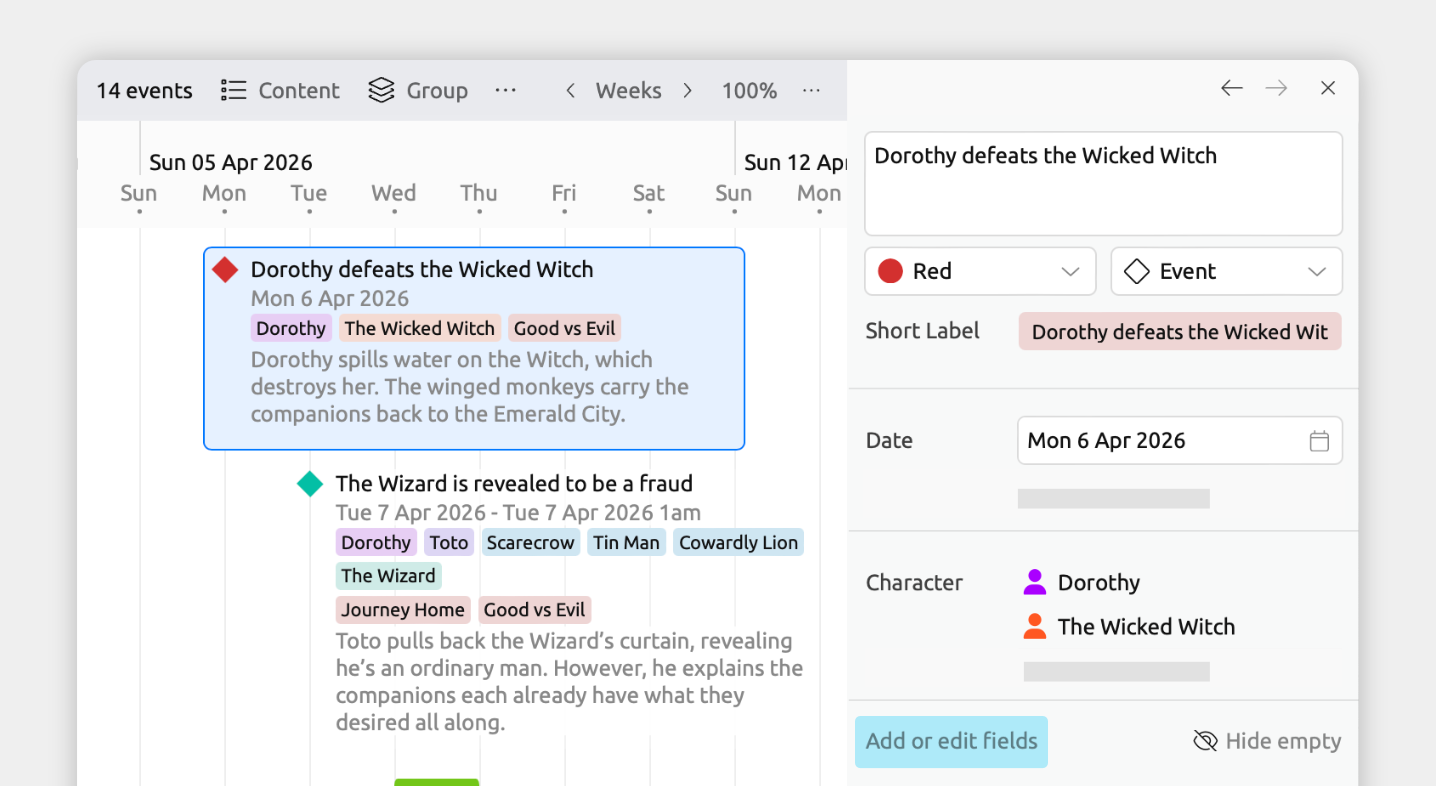
Fields are where you store the details for each event, character, or other item.
A field can be a:
- Text field for notes or descriptions
- Number, option list, or checkbox field for tracking tension, progress, or other metrics
- Relationship field to connect events, characters, story arcs, or any other items in your project.
- Image field for reference or inspiration
- Link or attachment field for research material
- Tag field for quick organization
You can set up different fields for each item type. For example, for Events you might store a summary and related characters. For Characters, you might store their traits and goals.
This lets you tailor what information you store, so you can track the details that truly matter to your story.
Interface Basics
Aeon Timeline’s interface is organized around three main areas: the tab bar, the item type sidebar panels, and the inspector.
The Tab Bar
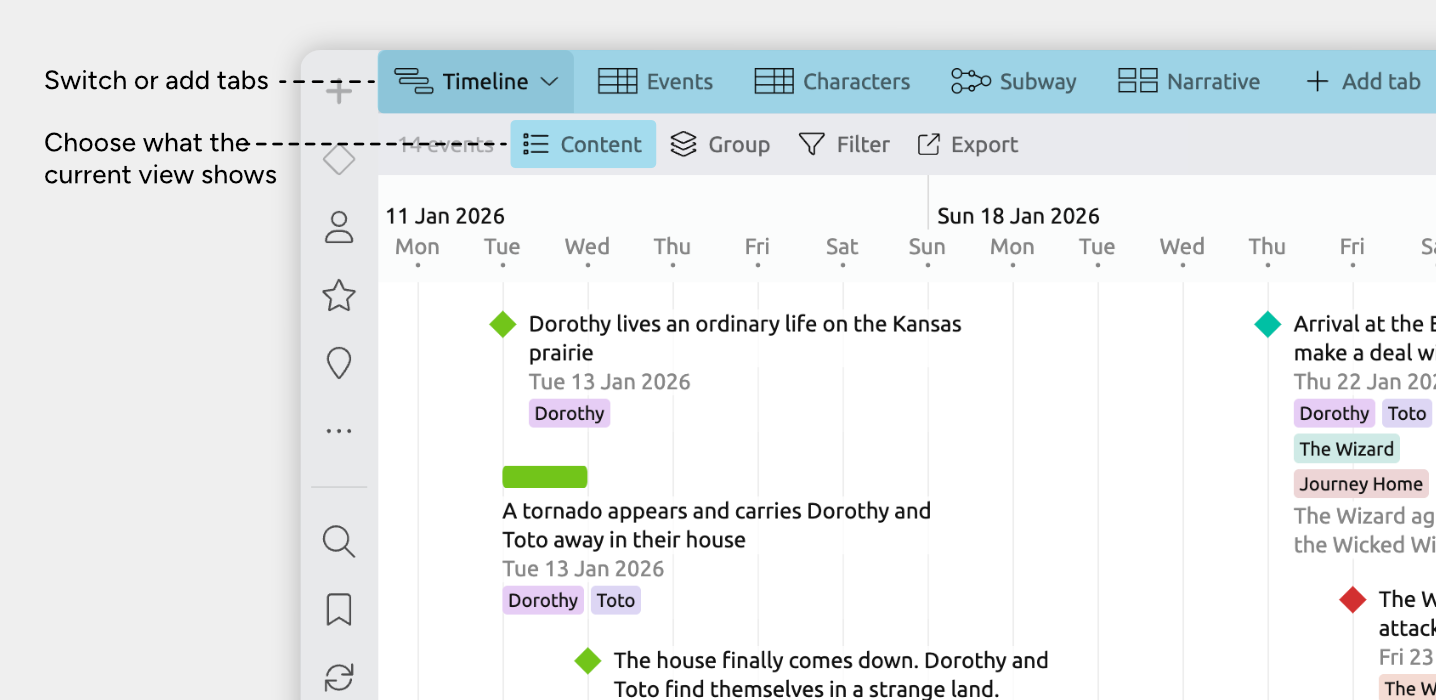
The tab bar runs across the top of the app. It lets you set up and switch between different views of your story.
Each tab can display a different view type — such as Timeline, Spreadsheet, or List — and you can rename tabs or create new ones to suit your workflow.
Item Type Sidebar Panels
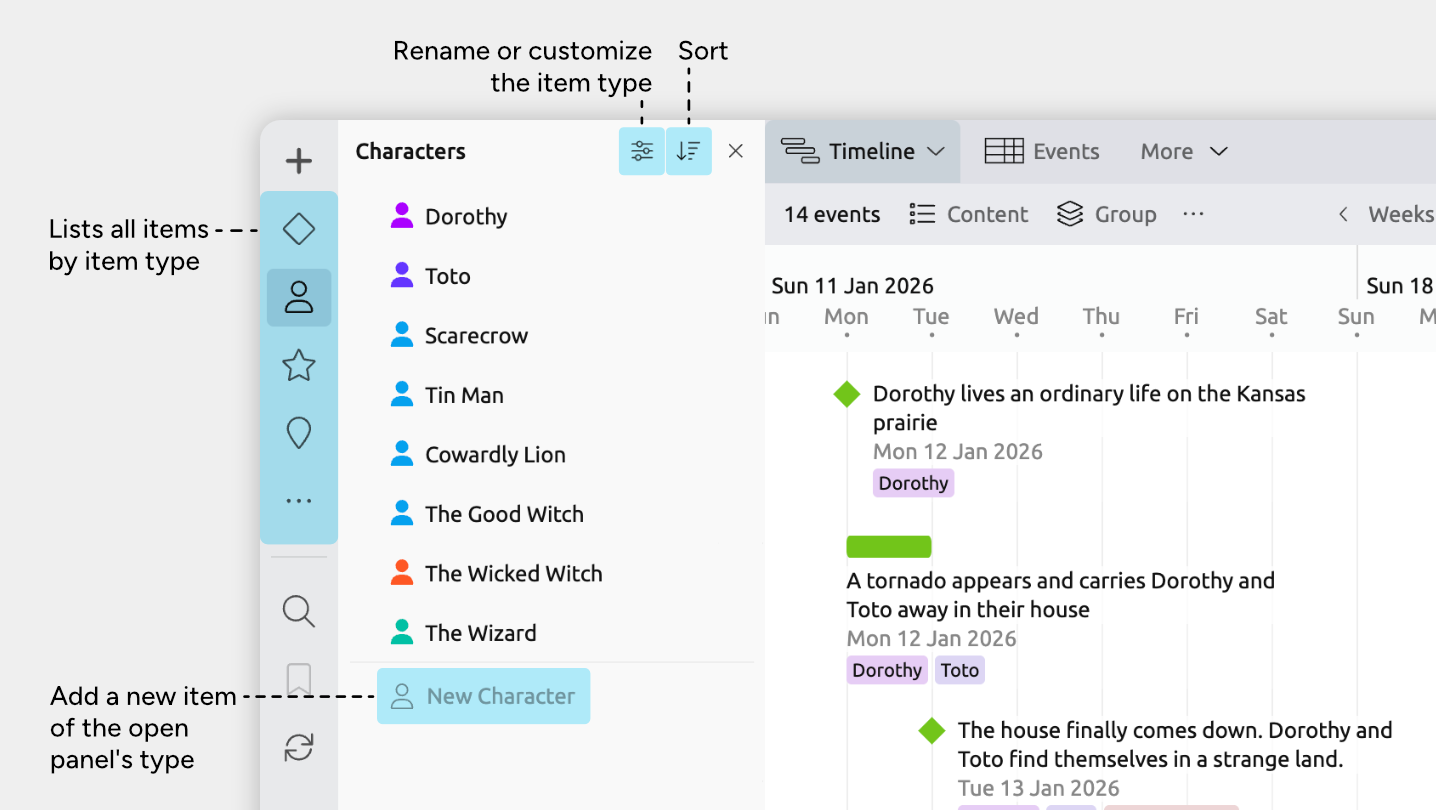
The sidebar panels give you a quick way to browse and manage everything in your project.
Each item type has its own panel, showing all items of that type in one place. So if your project includes Characters, Locations, and Story Arcs, you’ll see a dedicated list for each.
This makes it easy to jump straight to any part of your project you want to review, edit, or reference.
The Inspector
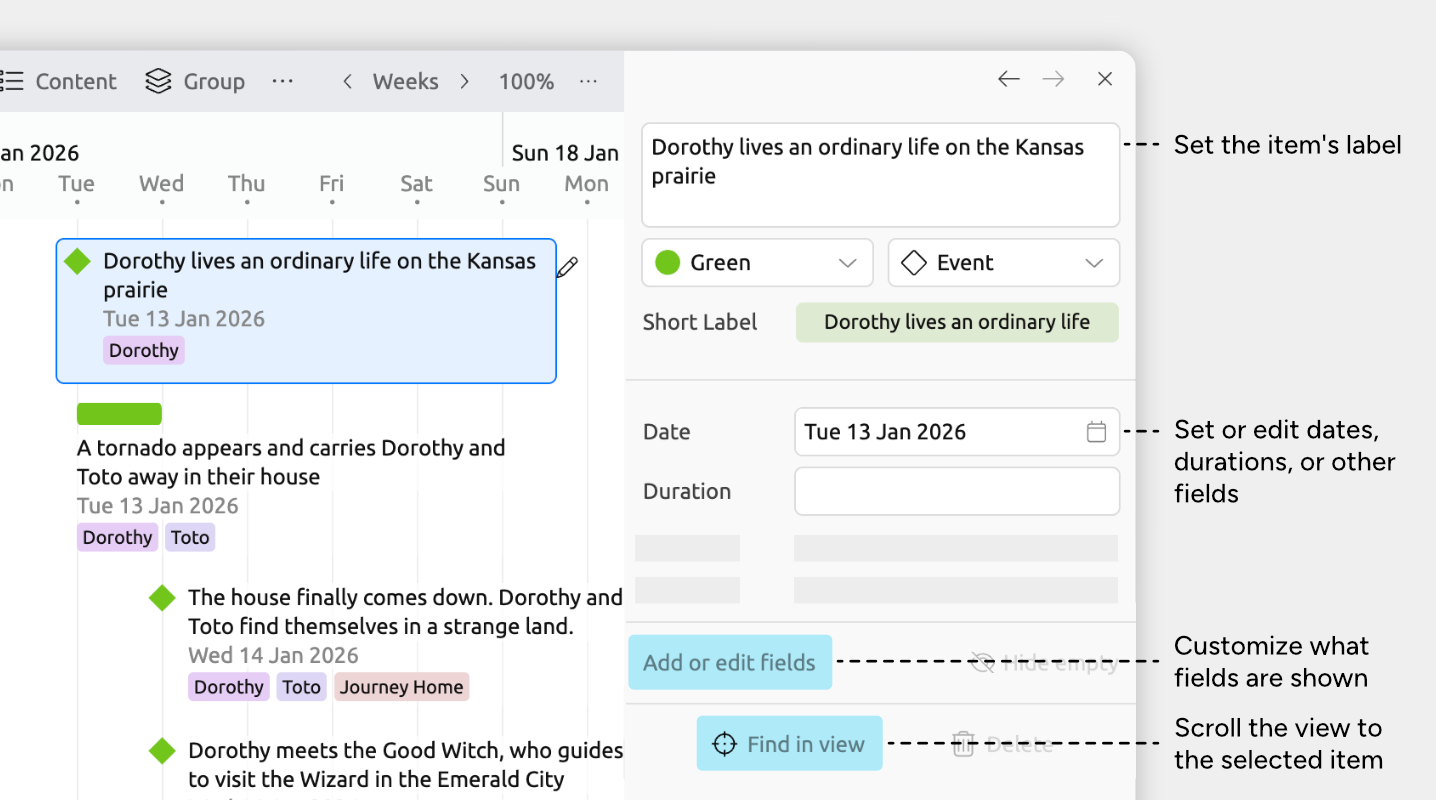
Whenever you select an event or item, its details appear in the inspector.
This is where you view and edit everything about that item — its label, dates, notes, related characters, and any other fields you’ve chosen to track.
Try Aeon Timeline free for 14 days
Get Aeon Timeline and easily visualize and organize your project.