
Importing Data
If you already have your data in a spreadsheet, there’s no need to start over in Aeon Timeline.
Using CSV import, you can bring structured data from a CSV file directly into your timeline. This includes events as well as supporting items like people, places, or projects.
This article explains how CSV import works, how to prepare your file, and how to use the import settings to bring your data into Aeon Timeline cleanly and efficiently.
CSV import is available on Mac and Windows, and not available on iOS.
Prepare Your CSV File
CSV files can be exported from most spreadsheet apps, such as Excel, Numbers, or Google Sheets.
In most cases, these apps already produce valid CSV files. However, if your data comes from another source, includes special formatting, or has been edited manually, you may need to make some adjustments before importing.
The sections below explain what formats Aeon Timeline supports and how your file needs to be structured.
Supported File Types
Aeon Timeline can import:
- Comma-separated values (CSV) files
- Tab-separated values (TSV) files
Supported file extensions:
- .csv
- .tsv
- .txt
Required File Structure
To import correctly, your file must follow these rules:
Rows
- Each row represents one record (for example, one event or item).
- All rows should contain the same number of columns.
- It’s okay to leave values empty, but the column separators must still be present.
Header Row
(Optional but Recommended)
- Your file may include a single header row that labels each column.
- This isn’t required, but it makes mapping columns during import much easier.
Delimiters
- Columns must be separated using either commas or tabs, and must be consistent throughout the file.
Special Characters and Line Breaks Inside Values
- Values that contain commas, tabs, or line breaks must be wrapped in straight double quotes (").
- Using quotes around all values is recommended but not required.
- Curly quotes cannot be used to wrap values.
- If a value contains a straight double quote as part of its text, escape it by doubling the quote.
Columns with Multiple values
Some columns may contain multiple values in a single field. For example, an event with several tags. In these cases:
- Wrap the entire column in double quotes.
- Separate each value with a comma.
Required File Encoding
CSV files must use ASCII or UTF-8 encoding for Aeon Timeline to import them correctly.
Convert Files to UTF-8 on MacOS
On macOS, you can convert a CSV file to UTF-8 using TextEdit:
- Open the file in TextEdit.
- Hold Option and choose File → Save As….
- Set Plain Text Encoding to Unicode (UTF-8).
- Save the file.
Convert Files to UTF-8 on Windows
On Windows, several tools can convert files to UTF-8. One common option is Notepad++:
- Open the file in Notepad++.
- Open the Encoding menu and select your current encoding (Encode in …).
- Open the Encoding menu again and choose Convert to UTF-8.
- Save the file (use Save As if you want to keep the original).
Include an Internal ID Column to Update or Link to Existing Items
If you want a CSV import to update or link to items that already exist in your timeline, your CSV file must include an internal ID column.
To update or link to existing items, Aeon Timeline needs a reliable way to recognize them during import.
Item labels aren’t always unique. Because of this, Aeon can’t rely on labels alone when importing data.
The internal ID solves this by providing a unique, hidden identifier for each item. When a row in your CSV uses the same internal ID as a previous import or an existing item, Aeon Timeline knows to update or link to that item instead of creating a new one.
If the internal ID value is new or left blank, Aeon will create a new item. Learn more about internal IDs →
Prepare Your Timeline Fields
Before importing, take a moment to check whether your CSV file includes columns that don’t yet exist in your timeline.
For example, your CSV might contain extra information such as:
- Custom notes
- Reference IDs from another system
- Status values or categories
- Research metadata or source details
Aeon Timeline can only import data into fields that already exist in your timeline. If a column doesn’t match an existing field, you’ll need to create that field first. See Add Notes, Tags, and Extra Details →
Choose the Import File
- Open the timeline file you want to import into, or create a new one.
- In the app menu, choose File → Import CSV or TSV….
- Select your CSV file in the file picker.
The Choose Columns panel opens.
Configure Import Options
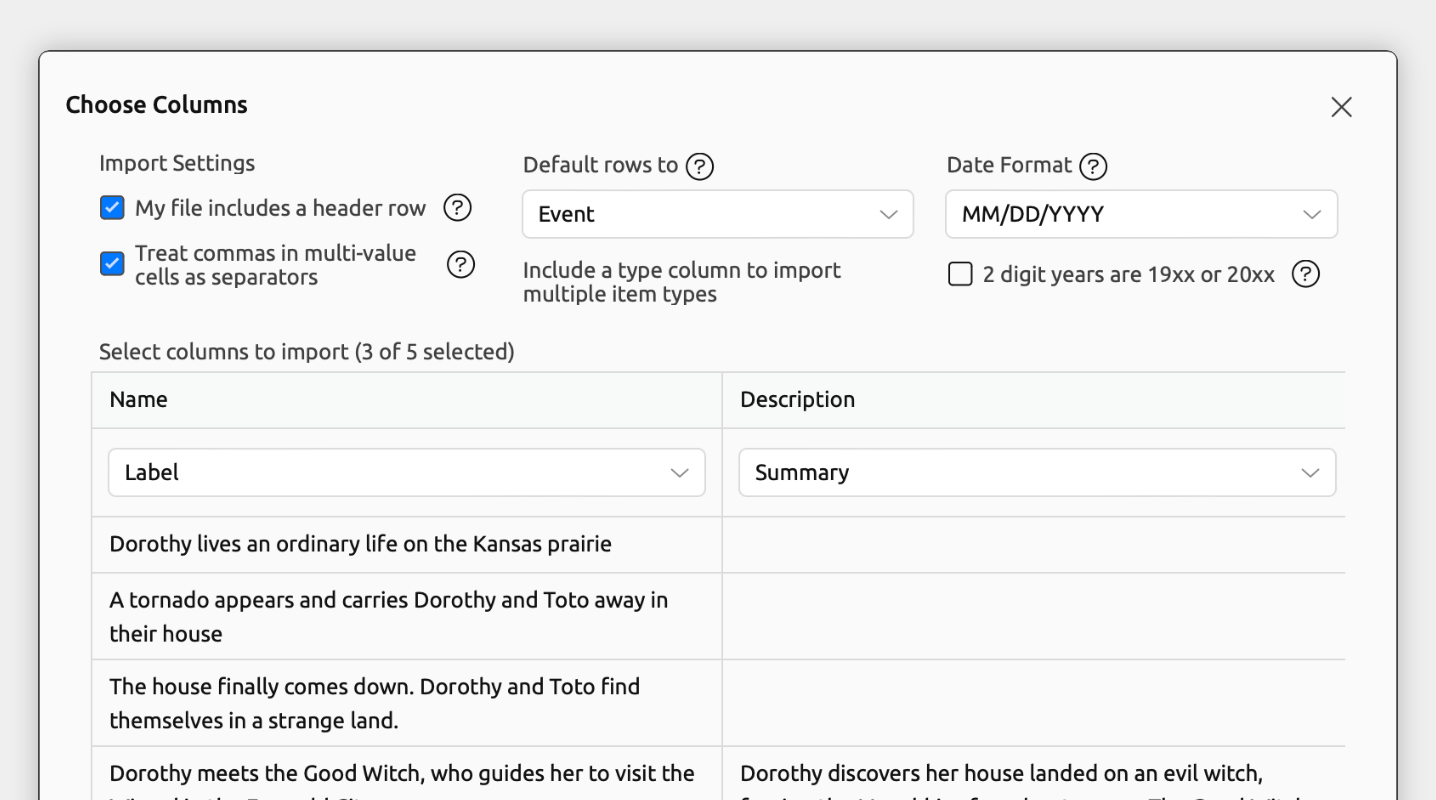
At the top of the Choose Columns panel, there are global import options that affect how all rows are imported.
- Header Row
Treats the first row of the CSV as column labels rather than data. This means the first row will be visible while you are matching columns, but will not be imported. - Default Row Type
Sets the item type to import rows as. If you later assign an Item Type column, values in that column will override this default type. - Date Format
Defines how dates in the Start Date and End Date columns are interpreted. - Two-Digit Years
If your file has any dates with two-digit years, this controls how they are interpreted. For example, whether the year “19” is interpreted as 2019 or 19AD.
Match Import Columns to Timeline Fields
In the Choose Columns panel, you can then map each column in your CSV to a specific field in Aeon Timeline.
Each field can only be matched to one column. Once selected, it won’t be available for other columns
Field options that are always available are:
- Don’t Import
Ignore the column entirely. - Label
The main name shown for the item. This is required to be set to run the import. - Type
Must match the name of an existing item type. - Color
Use a color label that matches your file’s color settings or a hex value. If using hex values, it will be converted to the closest available color. - Dates (Start Date / End Date / Latest Start Date / Earliest End Date)Dates can be entered in short (03/29/2022), medium (29 Mar 2022), or long (29 March 2022) formats, with optional times.
- Duration
Durations should be entered like “5 days” or “10 years, 2 months”. - Ongoing
Whether the event’s dates are ongoing. Should be yes/no or true/false. - Summary
Longer descriptive text for the item. - Tags
Multiple values must be comma-separated and wrapped in straight double quotes. - Parent
Nests the item under another item. Must match the Internal ID or label of another imported row, or the label of an existing item in your timeline. - Blocks
One or more items to create dependencies with. Multiple values must be comma-separated and wrapped in straight double quotes. - Links
One or more external URLs associated with the item. Multiple values must be comma-separated and wrapped in straight double quotes. Commas within links should be URL-escaped. - Image
An external URL to an image file. Commas within the link should be URL-escaped.
- Internal ID
A hidden identifier used to link items together during import. Learn more →
Depending on your file’s settings, you may also see additional categories of column options available:
- Properties
This section lists the custom properties defined in your file’s settings. Selecting one allows you to import column values into that property.
Values must match the property’s expected format, such as:- Text
- Numbers
- Yes/No or True/False
- An existing option from a list properties
- Types
This section lists your file’s item types. Selecting one creates relationships between the imported item and the items referenced in this column.
If you're adding relationships to existing items, the column should have values that match the Internal ID or label of another imported row, or the label of an existing item in your timeline.
If you want any non-matching values to be created as new items, check Create new items if no matching items exist.
If the column contains multiple values, they must be:- Comma-separated
- Wrapped in straight double quotes (")
- Relationships
This section lists your timeline’s custom relationship types. Selecting one creates relationships of that type between the imported item and the items referenced in this column.
If you're adding relationships to existing items, the column should have values that match the Internal ID or label of another imported row, or the label of an existing item in your timeline.
If you want any non-matching values to be created as new items, check Create new items if no matching items exist.
If the column contains multiple values, they must be:- Comma-separated
- Wrapped in straight double quotes (")
Use Internal IDs to Update Existing Items
The internal ID is a behind-the-scenes identifier that Aeon Timeline uses only during import to recognize when a row in your CSV refers to the same item as a previous import. It isn’t shown in the timeline interface and doesn’t affect how items appear once they’re imported.
Internal IDs are especially useful when:
- You expect to import the same data more than once
- Your CSV comes from another app that already has its own IDs
- You want to update or correct items later without creating duplicates
Formatting Internal IDs
- Use one unique value per row
- Don’t reuse the same value for different items
- Choose values that will stay the same across imports
Accepted Internal ID Values
- A previously imported Internal ID
Use the same value from an earlier import. The existing item with this Internal ID will be updated. - An existing identifier used in the app
If your items use identifiers as their compact display option, you can use that value. An item’s identifier is shown in the inspector when the item is selected. Learn more about compact displays → - A new unique value
Use any unique text or number (for example, “EXT-1042” or “case_17”). A new item will be created, and this value becomes its internal ID for future imports. - Left blank
A new item will be created. To update it later, you’ll need to use the item’s identifier.
Review and Run the Import
If any columns contain values that don’t match the expected format, you’ll see warning messages for those columns. Values with warnings won’t be imported. If needed, you can adjust your CSV file and restart the import.
When you’re ready, click Next: Confirm Data to review what will happen before anything is added to your timeline.
The confirmation screen shows:
- How many rows will create new items
- How many rows will update existing items
- How many rows will be ignored
If everything looks right, click Import to run the import. Otherwise, you can go back and adjust your import options.
Depending on how much data you’re importing, the import may take a few moments to complete.
Fix Problems
If the import doesn’t look right, you can undo it and try again.
- Press Undo
- Cmd+Z on Mac
- Ctrl+Z on Windows
- Your timeline returns to how it was before the import.
- Fix the CSV file or import configuration as needed, then run the import again.
After importing, you can view and edit the imported items and information directly in your timeline.
Try Aeon Timeline free for 14 days
Get Aeon Timeline and easily visualize and organize your project.