
Add Links, Files, and Images
Many projects are more than just dates and descriptions. They may rely on supporting material, such as research articles, source documents, reference files, or images that provide essential context.
Aeon Timeline lets you attach links, files, and images directly to your events and items, so everything stays connected and easy to find.
You can:
- Link to websites or online sources
- Attach files like PDFs, documents, or spreadsheets
- Add images from a web link or your computer
- Use images as avatars to make items easier to recognize at a glance
Enable Links, Attachments, and Images
Before you can add links, files, or images, you’ll need to make sure the relevant fields are enabled for your item types.
- Open Settings.
- Select the Item Types tab.
- Select the item type you want to add links or files for.
- In the Fields section, enable the fields you need:
- Links & Attachments
- Image
Once enabled, these fields appear in the inspector whenever you select an item of that type.
How Aeon Timeline Shows Links, Files, and Images
Links, files, and images are always visible in the inspector when you select an event or item.
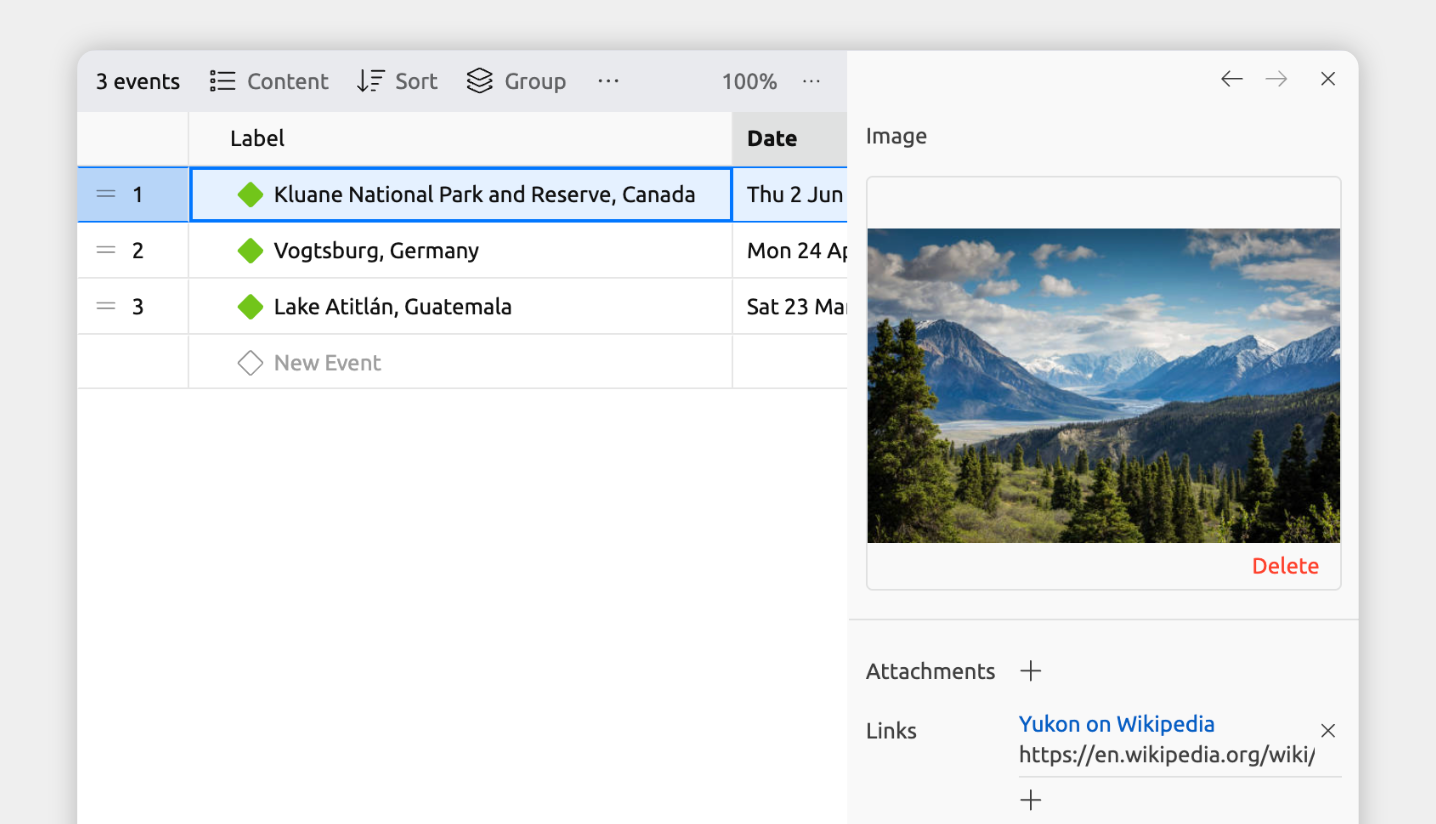
In views that use item cards, they can be shown directly on each card:
- Timeline view
- Relationship view
- List view
- Mindmap view
- Narrative view
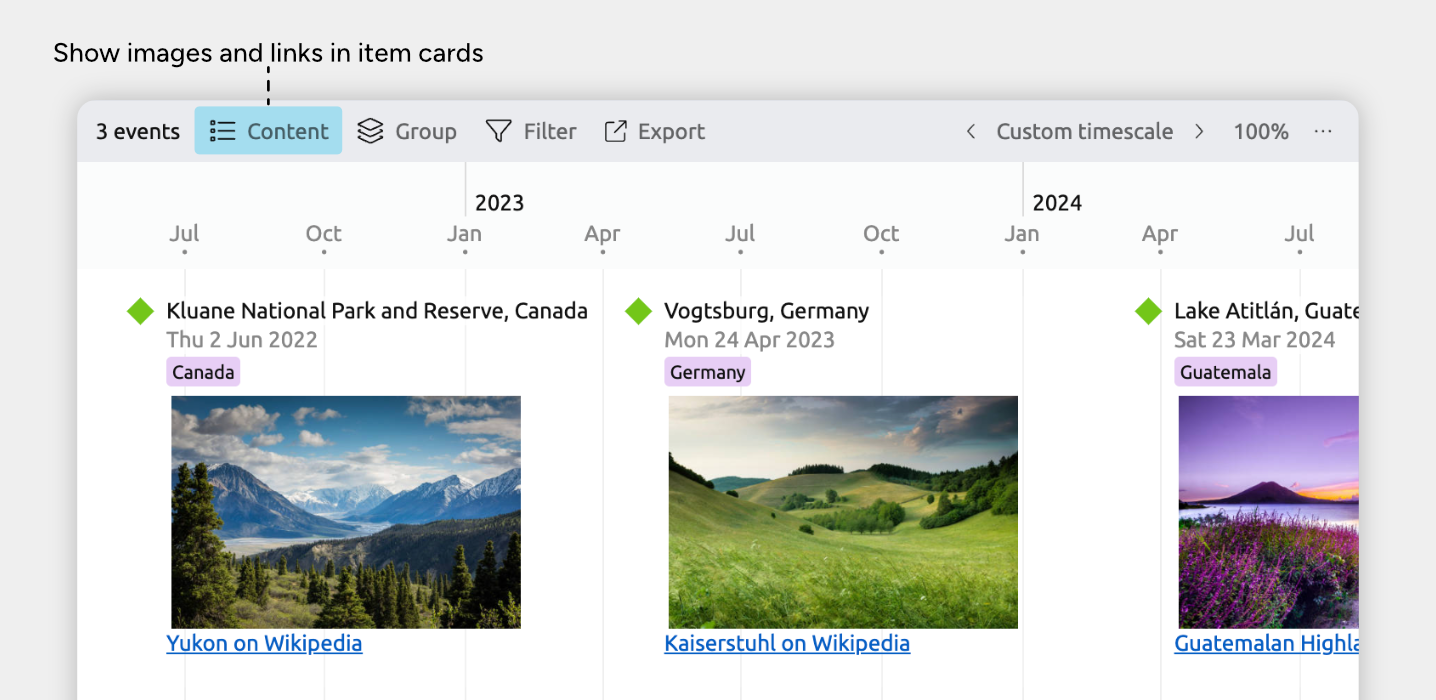
To show links, files, or images on item cards:
- Select or create a tab set to the Timeline, Relationship, List, Mindmap, or Narrative view
- Open the Content panel in the view header
- Under Fields, enable Links & Attachments and/or Image.
These may appear under See More, depending on your settings.
Add Links and Attachments
Links and attachments let you connect supporting material—such as research, documents, or media—directly to an event or item, so everything you need stays close at hand.
Links vs Attachments
Although they serve a similar purpose, links and attachments work differently.
Links point to content stored elsewhere, such as a website, an online document, or a file on your computer.
- They store a reference to a location, not the file itself
- Useful for web resources or files you don’t want embedded in your timeline
Attachments add files directly into your timeline.
- They travel with the timeline file if you move it
- Always available when the timeline is moved or shared
Tip: For very large files—like high-resolution images, audio, or video—links are usually the better option. They keep your timeline file smaller and easier to share.
Add a Link or Attachment
- Select an event or item.
- In the inspector, find the Links & Attachments field.
If it isn’t shown, at the bottom of the inspector click Add and Edit Fields to add it. - To add a link:
- In the Links section, click the + button.
- Paste a local or external link, or click Browse to select a local file to link to.
- (Optional) Enter a custom label to describe the link.
- To add an attachment:
- In the Attachments section, click the + button.
- Browse for and select the file on your computer.
Add Images
Images let you attach meaningful visuals—such as photos, illustrations, or diagrams—to provide context and supporting detail for events and items.
To add an image:
- Select an event or item
- In the inspector, find the Image field
If it isn’t shown, at the bottom of the inspector click Add and Edit Fields to add it. - Click the + button.
- Choose how you want to add the image:
- Browse to attach an image file from your computer, or
- Paste a link to an image stored online or locally.
Use Image Avatars
You can use an item’s image as its avatar. It will replace the item’s icon, and be shown across views, menus, and lists in the app.
To enable image avatars:
- Open Settings
- Select the Item Types tab
- Select the item type you want to use image avatars for
- In the Compact Display section:
- Select the Avatar option
- Check Use images
Once set, Aeon Timeline will use the images for items of that type instead of a generic icon.
Absolute vs Relative Link Paths
For local file links, Aeon Timeline supports both absolute and relative paths.
Absolute Paths
- Store the full path to a file on your computer.
- Work best when files live in a fixed, known location.
- Can break if the file is moved, renamed, or opened on another computer where that path doesn’t exist.
- Ideal when working on a single computer, or when files are stored in a stable, shared location (such as a server).
Relative Paths
- Store a path relative to the timeline file’s location.
- Continue to work if the timeline and linked files are moved together.
- Ideal when you plan to move or share your timeline and keep supporting files alongside it in the same folder (or folder structure).
Change Link Path Type
To switch between absolute and relative paths, use the top app menu:
File → Convert Links To
Where to Next?
Add Notes, Tags, and Extra Details
Add context and details to events and items using notes, tags, and other custom text, numeric, or option list fields.
Try Aeon Timeline free for 14 days
Get Aeon Timeline and easily visualize and organize your project.