
The Subway View
The Subway view is especially useful for comparing storylines, character arcs, projects, or any situation where you want to follow multiple related threads across the same timeline.
Each horizontal line (called a track) represents the timeline for a specific item—such as a character, story arc, or project, depending on your file. Events and items appear as nodes along each track, positioned by date, so all tracks stay aligned in time.
This makes it easy to compare how different sequences progress side by side, and to see where they intersect, overlap, or interact.
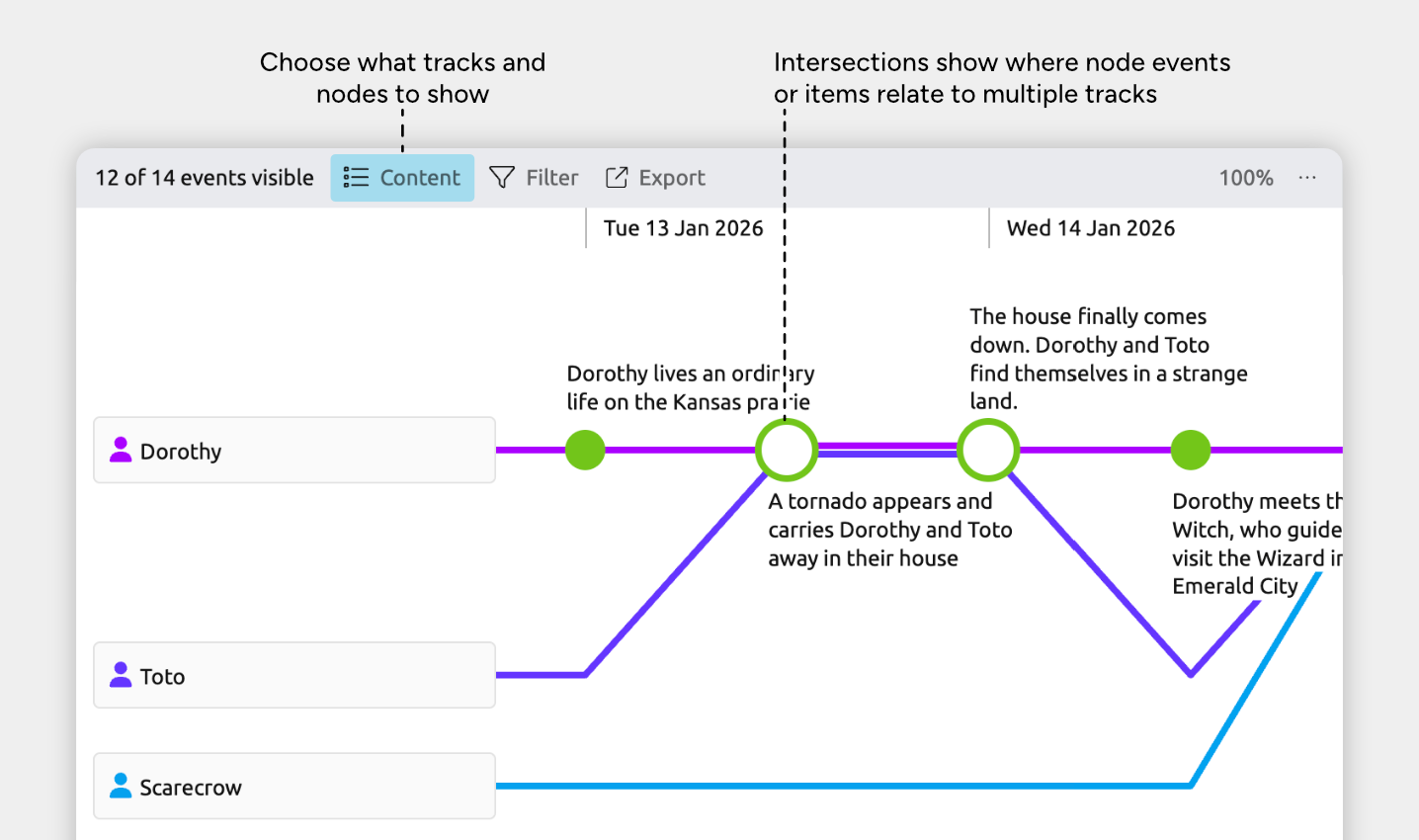
- Tracks run horizontally and each represent a single strand, such as a character, storyline, project, or theme.
- Nodes are the events or items that appear along each track.
- The order of nodes on the track is based on their date or narrative order.
Events that connect or involve more than one strand can be highlighted by track intersections.
Customize Content
Choose Which Items to Show as Tracks
Tracks are the main lines shown in the view.
- Open the Content panel in the view header.
- Under Tracks, choose:
- Item types to show all items of that type as tracks, or
- Individual items using the dropdowns next to each item type, if you want to focus on specific items only.
Choose Which Item Types Appear as Nodes
Nodes are the events or items that appear along the tracks.
- Open the Content panel.
- Under Nodes, check or uncheck the item types you want to show or hide.
This lets you focus on just the kinds of events that matter for the story or process you’re working on.
Note for narrative views: If you’re using a subway view set to show the narrative (shown by the Narrative label in the view header), the nodes will always be based on your narrative structure and can’t be customized per view. Learn more about the narrative →
Choose Whether Tracks Run Straight or Intersect
You can choose whether tracks appear as independent lines, or connect at shared events.
- Open the Content panel.
- Open the Layout section and choose between:
- Subway: tracks intersect when they’re both related to the same event or item node.
- Separate: tracks run as independent, parallel lines.
Straight tracks are often clearer for comparison, while intersecting tracks highlight interaction and overlap.
Add Events and Items
Add Items as Tracks
Tracks are individual items that appear as horizontal lines in the Subway view.
To add a new track:
- Click the + button in the sidebar and create a new item of the same kind as your existing tracks.
- If that item type is enabled under Tracks in the Content panel, the new item will appear automatically as its own track.
- If it doesn’t appear, open the Content panel and enable it.
Add Events and Items as Nodes on Tracks
Nodes are the events or items that appear along each track.
Create an Item at the End of a Track
At the right-hand end of any track, click the + button to add a new event or item to that track.
Create an Item Before or After Another
- Click an event or item’s pencil icon to open its Edit menu.
- On Mac or Windows, hover over the item’s label cell to show the icon.
- On iOS, tap the item’s gutter cell once to show the icon.
- Choose Create item before or Create item after.
Move Events Between Tracks
You can drag events from one track to another.
- Dragging an event or item onto another track adds a new relationship to the track item.
- The item is added to the new track but not removed from the original track.
A single event or item can be connected to multiple tracks at the same time. For example, if an event involves more than one character, you can drag it onto another character’s track to add that character.
Where to Next?
Customize Item Types
Use item types to organize your timeline into meaningful categories like Events, People, Places, or Tasks. Learn how to create and customize item types, and choose what details they track.
Connect Events, People, and More
Learn how to use relationships to connect events, tasks, people, and other items.
Try Aeon Timeline free for 14 days
Get Aeon Timeline and easily visualize and organize your project.