
The List View
The List view displays your events and items as a simple, ordered list.
It’s ideal when you want a clean, distraction-free way to read through and review your timeline.
Customize Content
You can choose which items appear in the list and how much detail is shown.
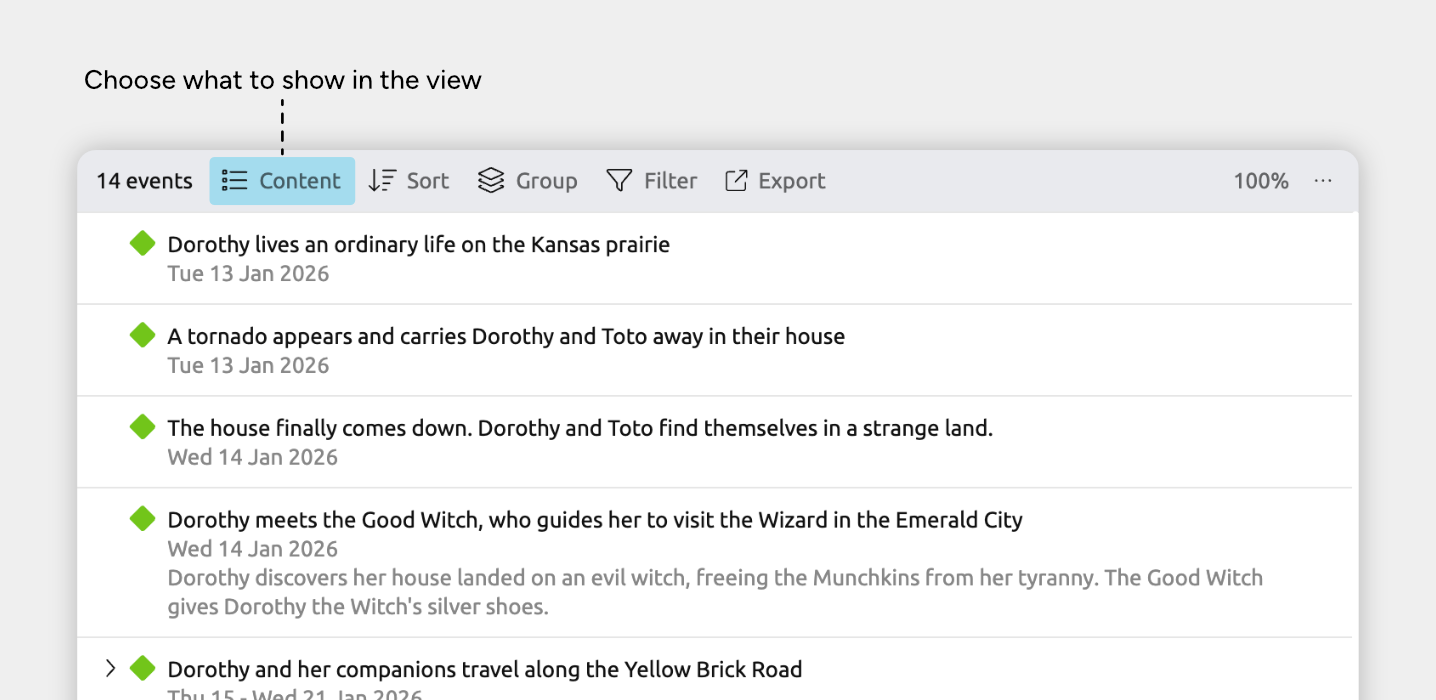
Choose Which Item Types to Show
- Open the Content panel in the view header.
- Under Rows, check or uncheck the item types you want to show or hide.
Note for narrative views: If you’re using a list view set to show the narrative (shown by the Narrative label in the view header), the rows will always show your narrative items and cannot be customized per view. Learn more about the narrative →
Customize Card Details
You can control how much information appears for each event or item.
- Open the Content panel in the view header.
- Under Fields, click fields to show or hide them on timeline cards.
- (Optional) Under Card options, adjust Max Lines Per Text Field to limit how much text can be shown.
Add Events and Items
Add a new Event or Item
- Scroll to the bottom of the list and focus the New Event or New Item input.
- If multiple item types are available, click the down arrow on the right side of the input to choose the item type.
- Type a label and press Enter.
Duplicate an Existing Item
- Click an event or item’s pencil icon to open its Edit menu.
- On Mac or Windows, hover over the item’s label cell to show the icon.
- On iOS, tap the item’s gutter cell once to show the icon.
- Select Duplicate.
Create an Item Directly Above or Below Another
- Click an event or item’s pencil icon to open its Edit menu.
- On Mac or Windows, hover over the item’s label cell to show the icon.
- On iOS, tap the item’s gutter cell once to show the icon.
- Choose Create item above or Create item below.
Reorder Events and Items
Sort All Rows
Use sorting to quickly reorganize the entire list based on what you want to focus on.
- Open the Sort panel in the view header.
- Choose the field you want to sort by, such as date, label, or another column.
Reorder Individual Rows
In some cases, you can drag and drop individual rows to reorder them. Whether this is available depends on how the view is currently sorted.
Rows can be manually ordered when you are sorted by:
- No sort order
- Dates → Flexible ordering enabled
- Color, as long as you stay within the same color group
- Item type, as long as you stay within the same item type
- Option list properties, as long as you stay within the same option
Note for iOS: Long-press to enter Edit mode, then drag a row.
Note for narrative views: If you’re using a list view set to show the narrative (shown by the Narrative label in the view header), the rows will always be sorted by your narrative order. Learn more about the narrative →
Group Events and Items
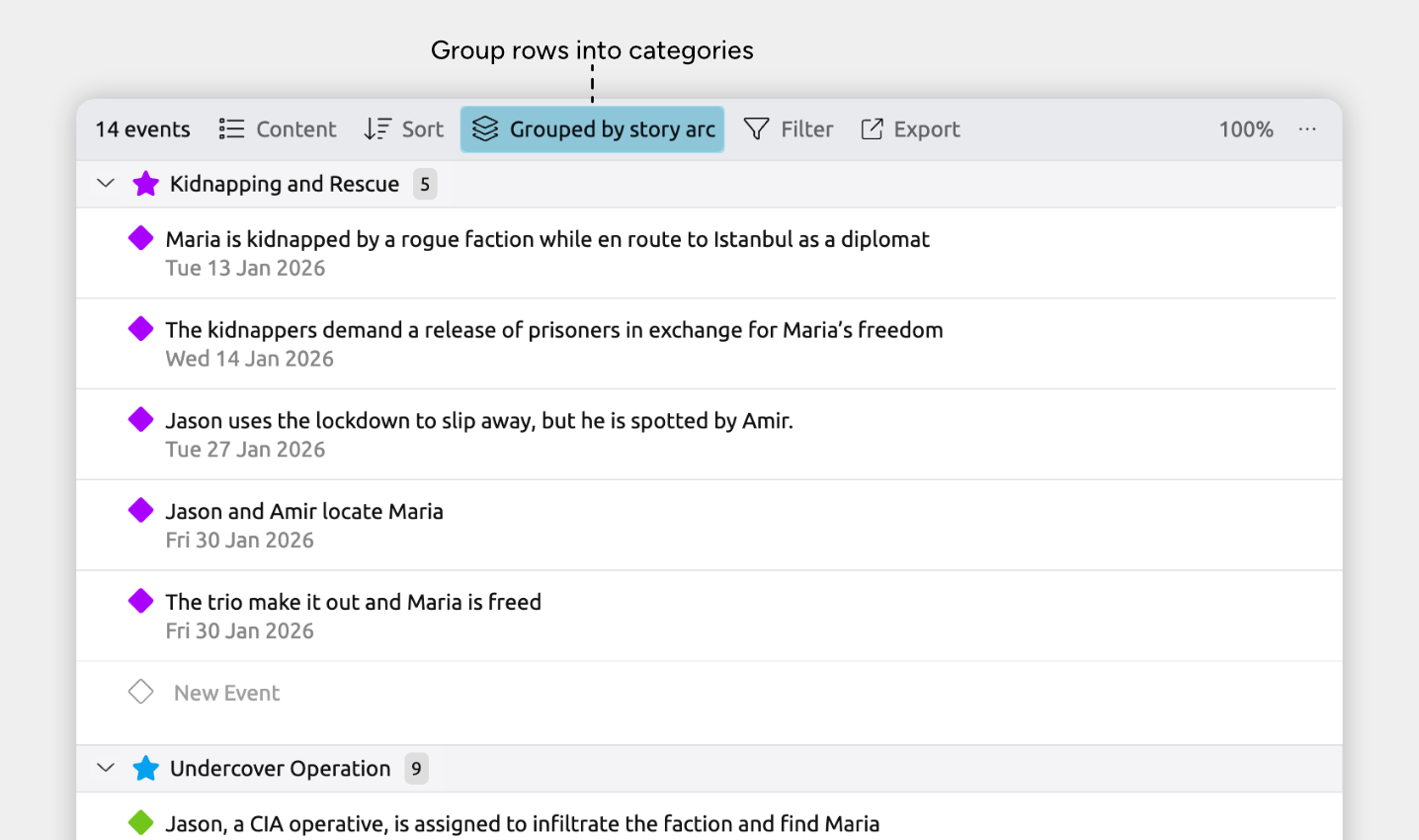
Grouping divides the list into sections of related rows. This makes it easier to focus on one group at a time, and work through large lists in a more manageable way.
Enable grouping from the Group panel in the view header.
Nest Items to Create Hierarchies
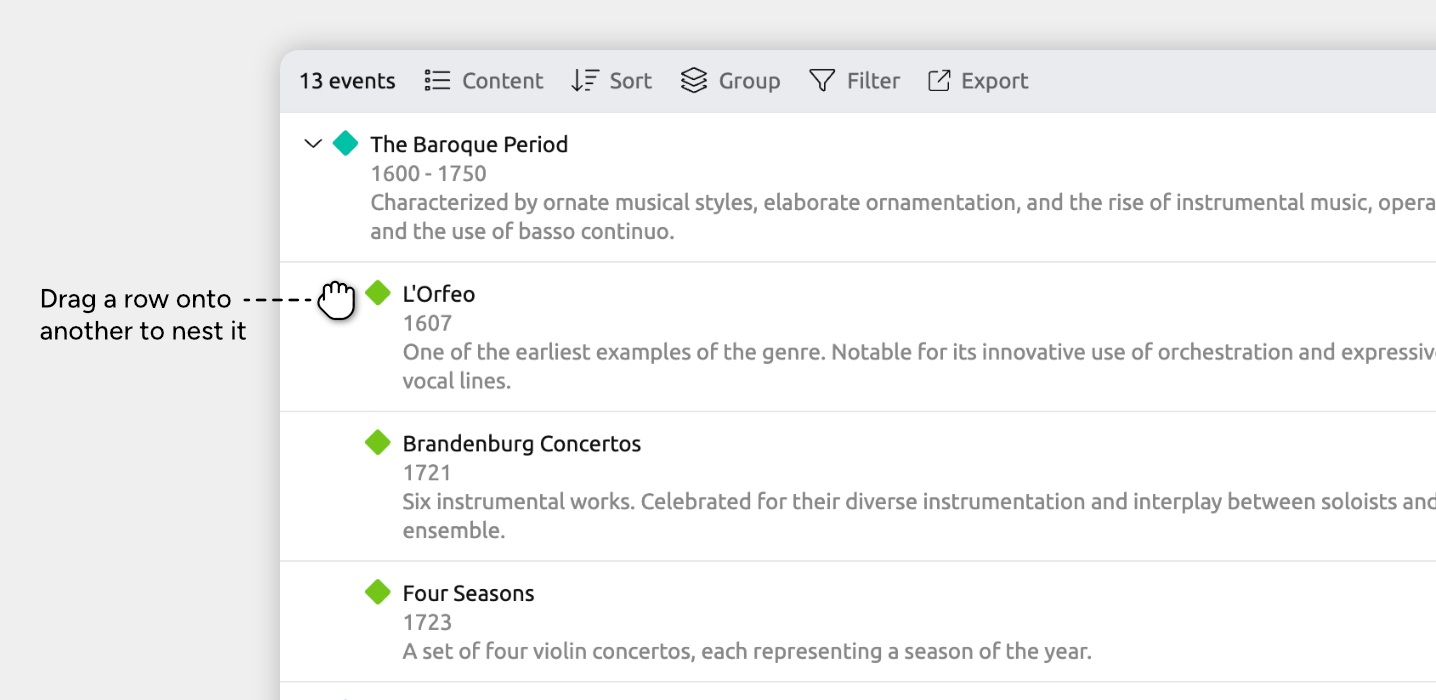
Nest events under a parent to break larger events into smaller, detailed sub-events, like battles in a war or subtasks in a task.
To nest items within the list, drag one row into another.
Note for iOS: Long-press to enter Edit mode, then drag a row.
Note for narrative views: If you’re using a list view set to show the narrative (shown by the Narrative label in the view header), dragging to nest items changes their narrative structure, not their timeline hierarchy. Learn more about the narrative →
Where to Next?
Customize Item Types
Use item types to organize your timeline into meaningful categories like Events, People, Places, or Tasks. Learn how to create and customize item types, and choose what details they track.
Connect Events, People, and More
Learn how to use relationships to connect events, tasks, people, and other items.
Try Aeon Timeline free for 14 days
Get Aeon Timeline and easily visualize and organize your project.