
Split Views
Aeon Timeline’s split views let you divide your workspace into two or more independent panes so you can view and work with different views or aspects of your file at the same time.
Each pane is independent, which means it can show:
- A different view type
- Different item types
- Its own filters, sorting, or grouping
You can arrange panes vertically or horizontally, depending on how you prefer to work.
Split views aren’t a view type on their own. They help hold any of the view types (Timeline, Spreadsheet, Narrative, Relationship, etc.) to give you flexibility in how you organize your workspace.
Common Scenarios
Here are ways split views can make your workflow more flexible and powerful:
- Compare different timelines at once
For example, compare characters’ individual timelines, or parallel storylines. - Apply different filters independently
Each pane can have its own filters. For example, you could apply a filter to one pane to focus on a specific character or story arc, while leaving the other pane unfiltered to show all data. - Mix view types
Work more efficiently if you have a large screen. For example, a spreadsheet in one pane, and the timeline or narrative in another.
Add and Manage Split Views
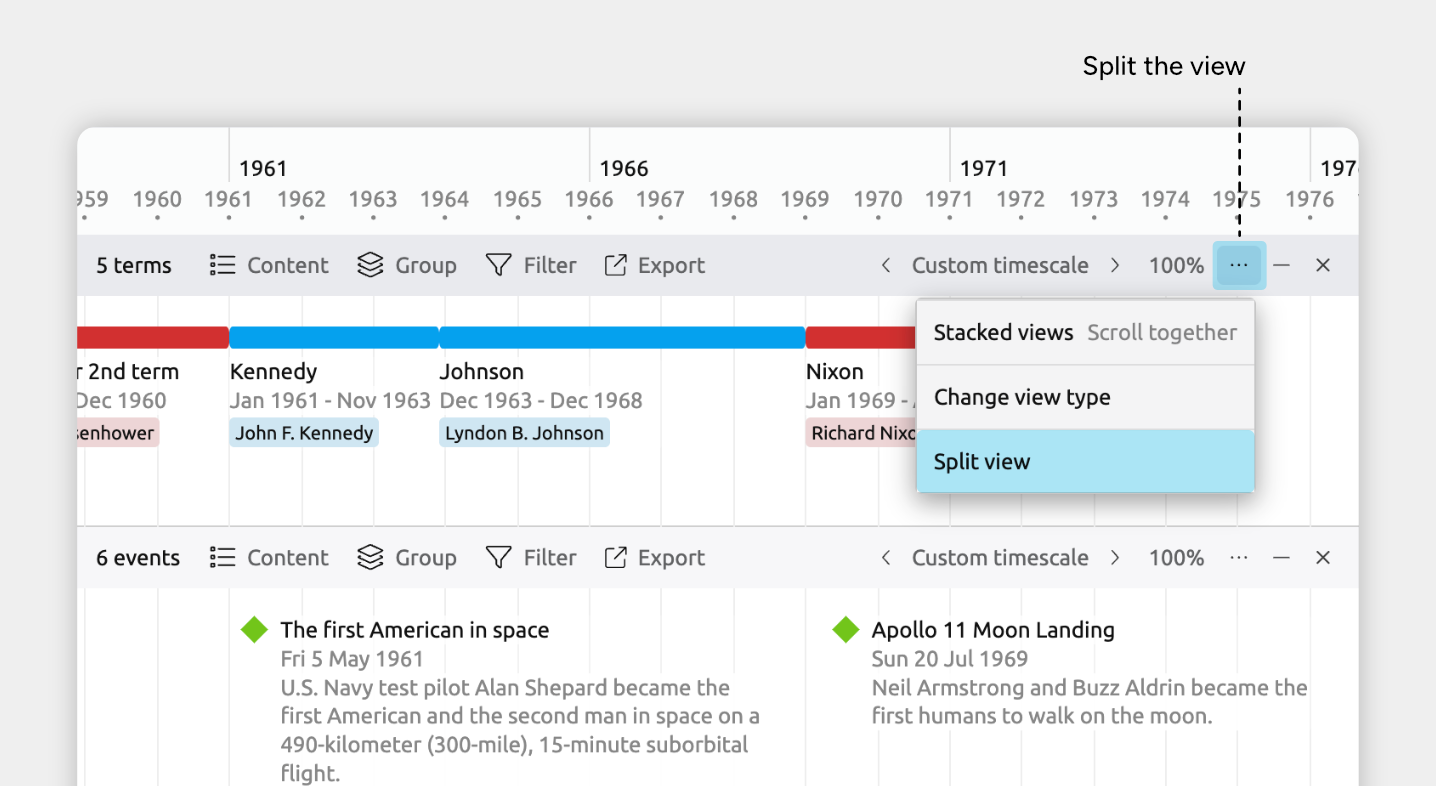
Add a Split View
- Click the … icon at the top right of the view header.
- Choose Split view.
- Select the split direction and the view type you want to add.
You’ll now see two views, each with their own header and controls.
Each pane can be customized independently. Use the Content and Filter panels in each view header to choose which events or items are shown.
Close a Split View
To close a split view, click the × icon at the top right of the view header.
Change a View’s Type
- Click the … icon at the top right of the view header.
- Choose Change view type, then select the view you want.
Scroll Split Timelines Separately or Together
When you split two Timeline views horizontally, you can choose whether they scroll together or independently.
- Scroll together keeps both timelines aligned as you move through time.
- Scroll separately lets each timeline scroll and zoom independently, which is useful for comparing different periods or levels of detail.
To change how your split timelines scroll together:
- Select or create a tab with a split Timeline view.
- Click the … button at the right of the view header.
- Open the Stacked views panel.
- Choose Scroll separately or Scroll together.
Try Aeon Timeline free for 14 days
Get Aeon Timeline and easily visualize and organize your project.