
Customize Item Types
Item types are the categories of things you track in your project. They describe what something is, for example, an event, a person, or a place.
Why Use Item Types
Item types help you organize your information into clear groups. You can separate what happens from who’s involved, where things take place, and how different pieces of work fit together.
This makes it easier to organize and connect related information, and build a timeline that shows the full picture of your project.
Examples of Item Types
Item types can be used to organize:
- Things that happen on your timeline
For example Events or Tasks. - Contextual information that adds meaning and detail to your events
For example People or Locations. - Categories to help you organize or shape your timeline
For example Projects or Story Arcs.
You’re not limited to these. You can customize existing item types or create your own to match the way you work.
How Aeon Timeline Shows Item Types
Every event or item you create in Aeon Timeline has an item type.
The item type controls both how the item looks and what kind of information it can contain. Each item type can have its own icon, and its own set of fields and details.
For example:
- A Task might include fields such as date, status, or progress.
- A Character might instead include fields for character traits, friends and family, or other notes.
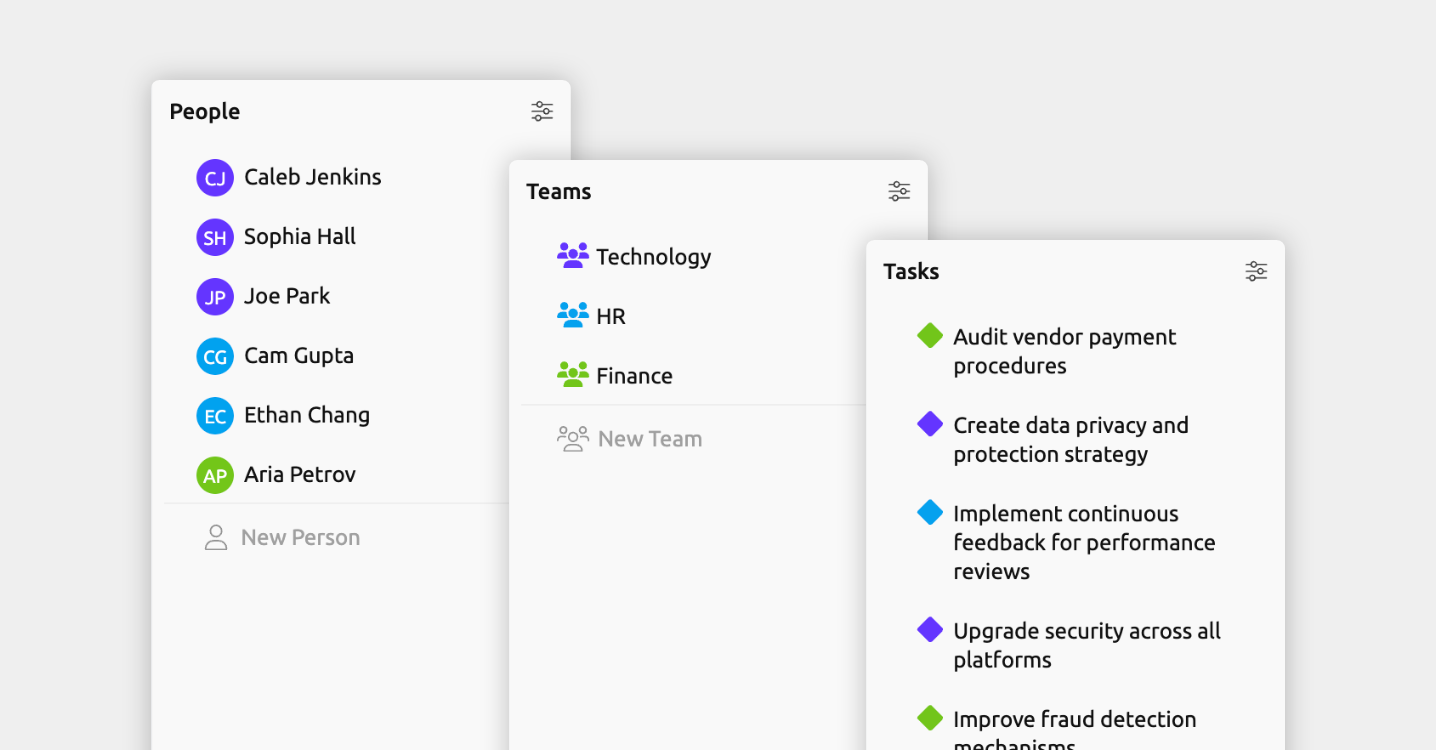
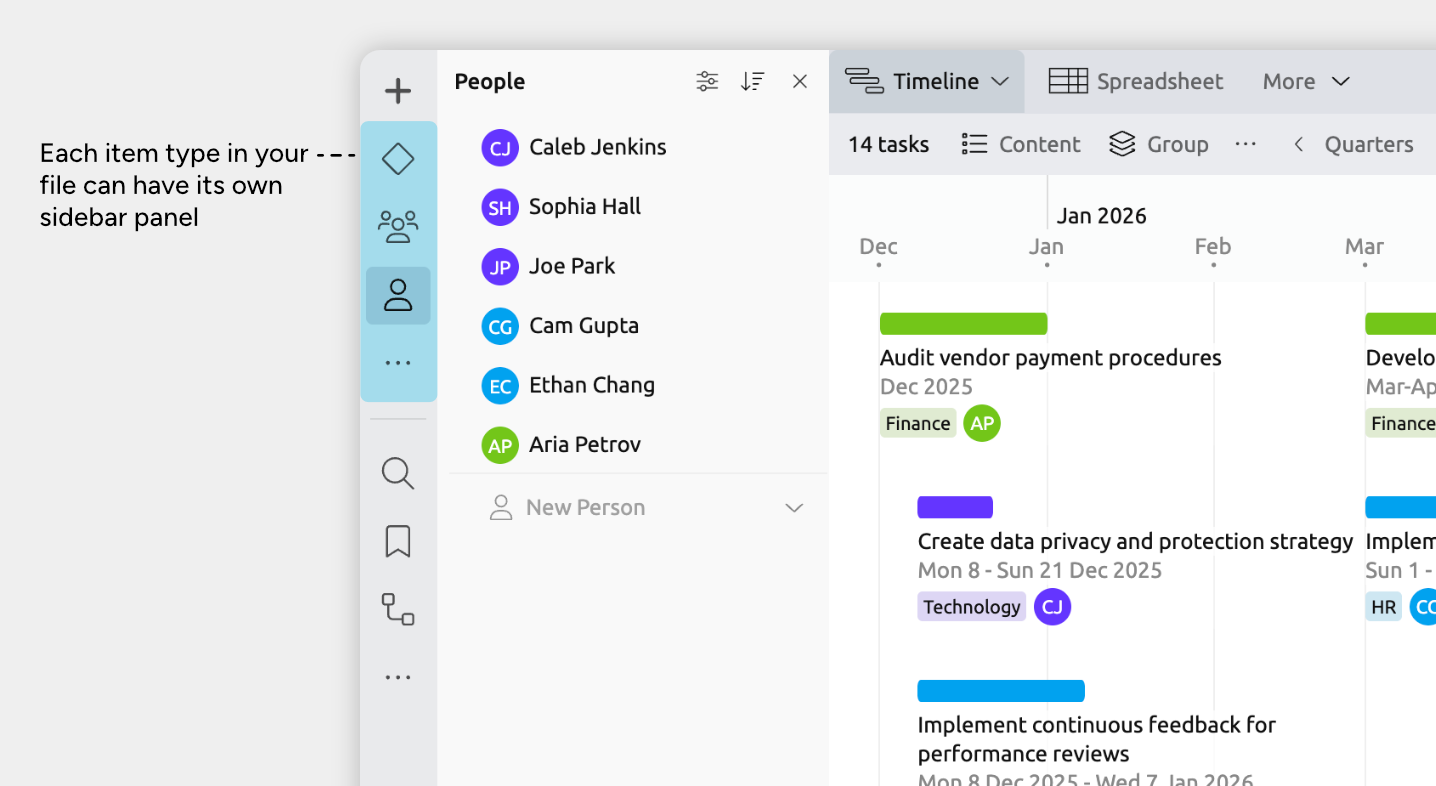
Each item type has its own panel in the sidebar, where all items of that type are listed.
These panels make it easy to add new items, edit existing ones, and manage them together.
In most views, you can also show, hide, filter, or group items by type, helping you focus on the information that matters most at any given time.
Add or Edit Item Types
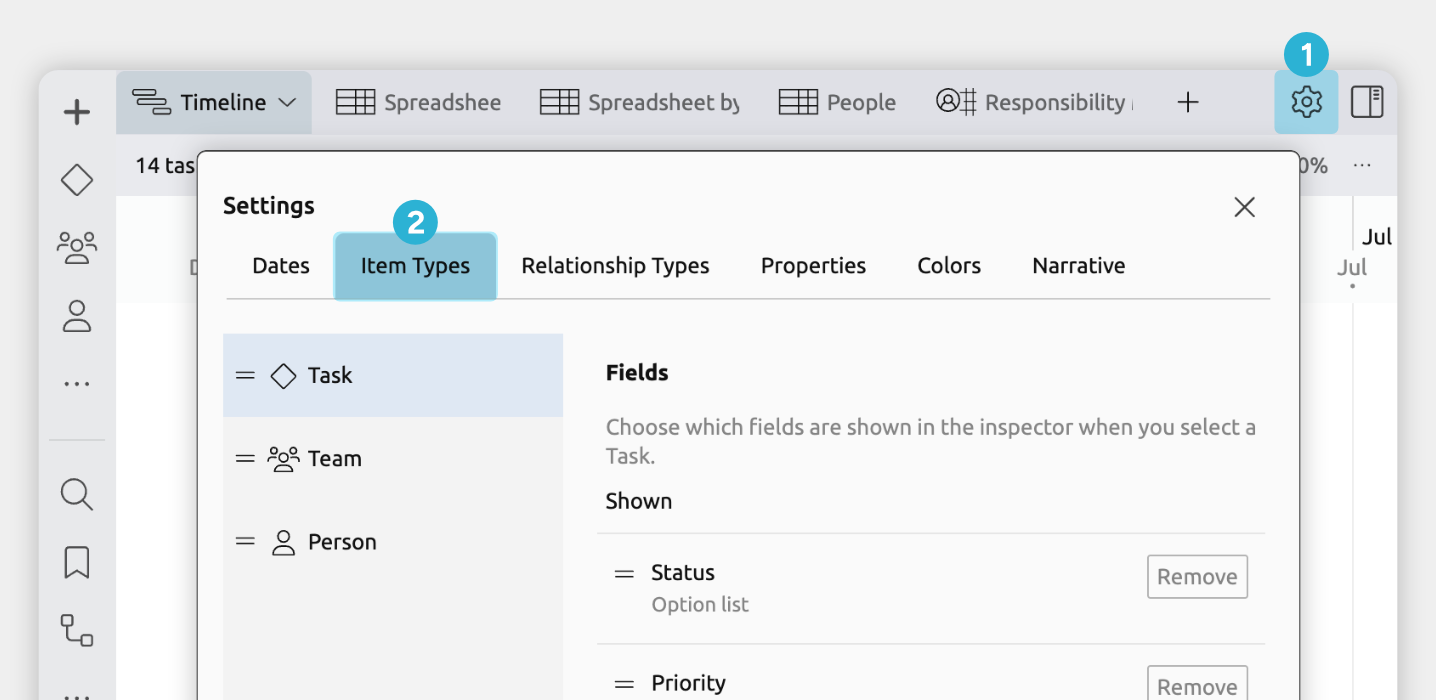
To add or edit item types:
- Open Settings.
- Select the Item Types tab.
From here, you can:
- Edit an existing item type
Select it from the list on the left. - Create a new item type
Click Add at the bottom of the left-hand list. - Duplicate an item type
Select an item type and click the Copy icon to use it as a starting point.
Settings Reference
When creating or customizing an item type, you can adjust the following settings.
Name and Icon
Helps you quickly recognize this type across views, menus, and lists.
Color
Sets the default color used when new events or items of this type are created.
You can still change the color of individual events or items at any time.
Allows Dates
Sets whether events or items of this type can have dates.
When enabled, items can appear on the timeline and use date-based fields such as dependencies.
Learn more about adding and customizing dates →
Fields
Fields define what information each event or item of this type can store, such as:
- Dates
- Relationships to other items
- Text summaries
- Dependencies
- Tags
- Customizable option lists
You can add, remove, and reorder fields for this item type. Different item types can use different sets of fields.
Learn more about adding relationships to other items →
Learn more about adding summaries, tags, and other details →
Visibility
Controls if this item type appears in certain places in the app.
- Sidebar
Whether this item type has its own icon and panel in the sidebar. - Narrative
Whether items of this type are allowed to be included in the narrative.
Learn more about the narrative → - Relationship comparisons
Whether this item type can appear as a column in the Relationship view or as a track in the Subway view.
Learn more about relationships →
Note: Most views, such as the Timeline or Spreadsheet view, still let you choose which item types are shown on a view-by-view basis.
Sorting
Defines how events or items of this type are ordered by default. This affects:
- The sidebar panel for the item type
- Lists and dropdowns throughout the app
Note: Views that support sorting can still apply their own sorting independently.
Nesting
Controls which item types this one can be nested under, allowing you to build hierarchies.
Nesting is useful for breaking large events or tasks into smaller parts, and for organizing items that naturally belong within broader groupings.
Learn more about nesting →
Compact Display
Controls how events or items of this type are displayed when they’re shown in a compact or reference-style format.
This applies in places where an event or item is shown without being the main focus, such as in related item sections within cards for another item.
Aeon Timeline provides three compact display options:
- Short label
Displays like a tag. A short label can be up to 30 characters long and defaults to the item’s main label if none is specified.
You can also choose whether short labels use the item’s colour or are shown in greyscale. - Avatar
Displays a circle with the item’s colors and initials. Initials are generated automatically from the item’s label if none are specified.
You can optionally use image avatars, which work particularly well for item types that represent people or characters. - Identifier
Assigns each item a unique identifier, such as “EV123”, and displays it in a tag-like style. Identifiers auto-increment and are best suited to tasks or items that need to be referenced by a unique number or ID.
Where to Next?
Explore the Different Views
Different views let you focus on different tasks. Visualize timing on the timeline, bulk-edit information in a spreadsheet, or review your work in a list.
Connect Events, People, and More
Link people, events, places, and other items to show how they’re connected. Relationships make it easier to track who was involved in an event, how events influence each other, or how different parts of your project fit together.
Try Aeon Timeline free for 14 days
Get Aeon Timeline and easily visualize and organize your project.