
The Relationship View
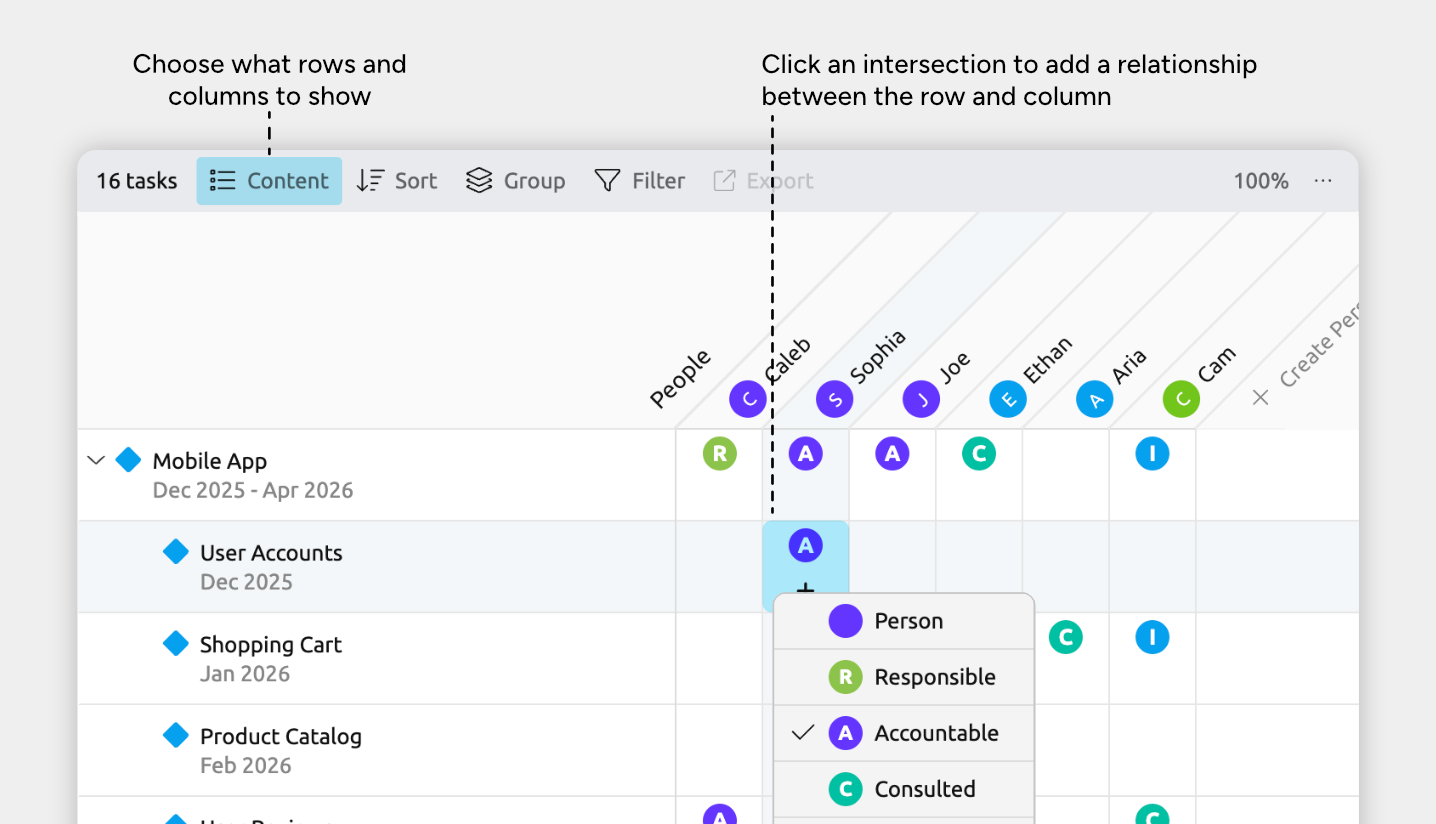
The Relationship view shows how events and items are connected to each other in a grid format.
Rows and columns represent different events and items, and each intersection shows the connections between the intersecting row and column.
For example, depending on what information is available in your file, you could see which people are involved in which events, or which tasks belong to which projects.
Customize Content
You can control which items appear as rows and columns, depending on what connections you want to focus on.
Choose Which Item Types to Show as Rows
- Open the Content panel in the view header.
- Under Rows, check or uncheck the item types you want to show or hide.
Note: If you’re using a relationship view set to show the narrative (shown by the Narrative label in the view header), the rows will always show your narrative items and cannot be customized per view. Learn more about the narrative →
Choose Which Items to Show as Columns
- Open the Content panel in the view header.
- Under Columns, choose:
- Item types to show all items of that type as columns, or
- Individual items using the dropdowns next to each item type, if you want to focus on specific items only.
Customize the Intersection Icons
Each intersection uses an icon to represent the relationship between the row and column items. If you’re using custom relationships, you can control how those icons look.
- Open Settings
- Select the Relationship Types tab
- Select a custom relationship from the list on the left.
- Under View Display, choose a shape and color.
Add Items and Relationships
You can add both new events and items, and the relationships between them directly in the Relationship view.
Add a new Event or Item as a Row
- Scroll to the bottom of the view and focus the New Event or New Item input.
- If multiple item types are available, click the down arrow on the right side of the input to choose the item type.
- Type a label and press Enter.
Add a new Event or Item as a Column
- Find the block of columns for the item type you want to add.
- Scroll to the right-hand end of that column section.
- Click + New Item.
- Type a label and press Enter.
Add a Relationship
Each intersection shows how the item in the row relates to the item in the column.
- Find the row for one event or item and the column for the other.
- Click the intersection where they meet.
- Choose a relationship type from the list.
If you need a different relationship type, you can create or edit them in Settings → Relationship Types.
Reorder Events and Items
Sort All Rows
Use sorting to quickly reorganize the entire view based on what you want to focus on.
- Open the Sort panel in the view header.
- Choose the field you want to sort by, such as date, label, or another column.
Sort All Columns
Columns follow the sort order that the item type is set to.
- Open Settings.
- Select the Item Types tab.
- Select an item type from the list on the left.
- Under Sorting, choose the field you want to sort by, such as date, label, or another field.
This will also affect how items of the type are sorted in their side panel, as well as in lists and menus across the app.
Reorder Individual Rows or Columns
In some cases, you can drag individual rows or columns to reorder them.
Rows and columns can be manually ordered when the view (for rows) or item type (for columns) is sorted by:
- No sort order
- Dates → Flexible ordering enabled
- Color, as long as you stay within the same color group
- Item type, as long as you stay within the same item type
- Option list properties, as long as you stay within the same option
Note for iOS: Long-press to enter Edit mode, then drag a row or column.
Note for narrative views: If you’re using a relationship view set to show the narrative (shown by the Narrative label in the view header), the rows will always be sorted by your narrative order. Learn more about the narrative →
Measure Time Between Related Events
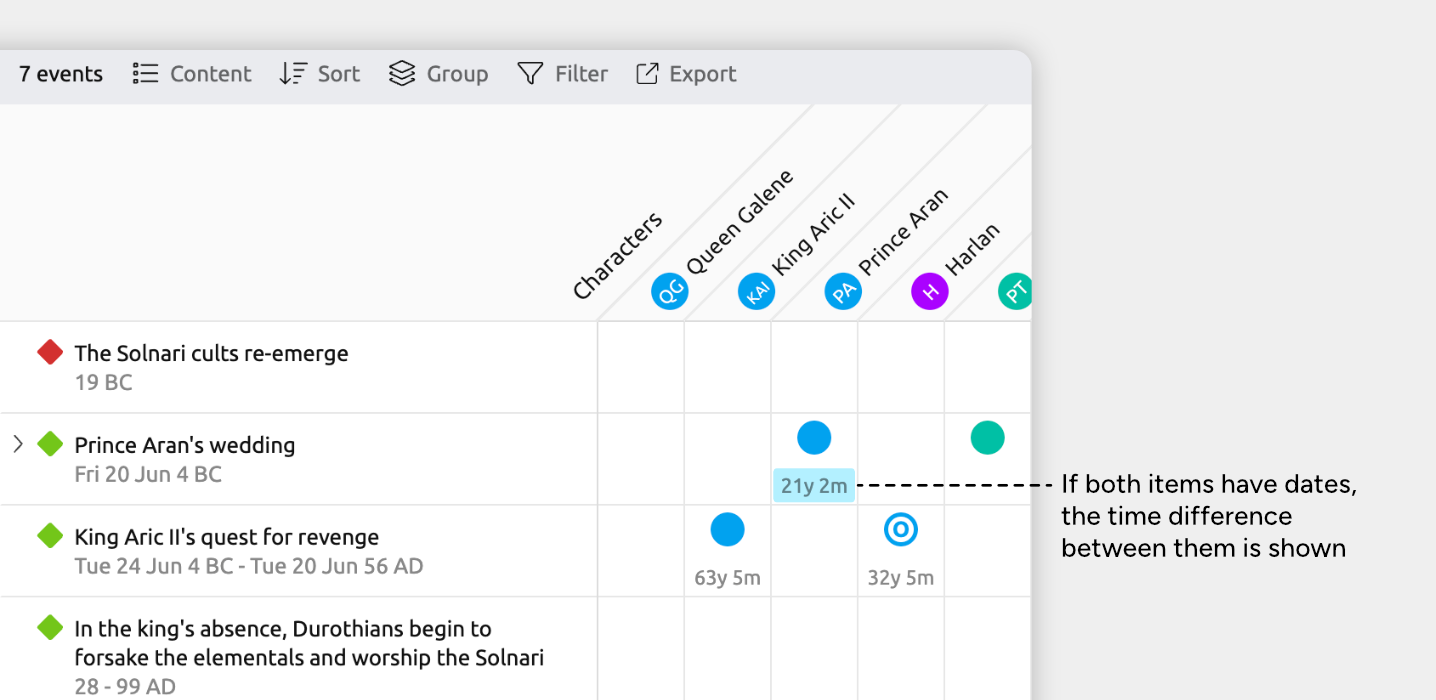
When both the item in the row and the item in the column have dates, the Relationship view displays the time difference between their start dates directly in the intersection.
This makes it easy to see things like how old a person or character was at a particular event, or how much time passed between an event and a related milestone.
Where to Next?
Customize Item Types
Use item types to organize your timeline into meaningful categories like Events, People, Places, or Tasks. Learn how to create and customize item types, and choose what details they track.
Connect Events, People, and More
Learn how to use relationships to connect events, tasks, people, and other items.
Try Aeon Timeline free for 14 days
Get Aeon Timeline and easily visualize and organize your project.