
Measure Time Between Events
For some timelines, the work to make meaningful use of your timeline isn’t just about when events happen; it’s also the math in between.
You might want to know how old a person is at a particular event, or how long has passed since an important moment.
Aeon Timeline can help you quickly see how much time has passed between events and items using the Timeline view, the Relationship view, or the inspector.
Measure Time Between Events on the Timeline
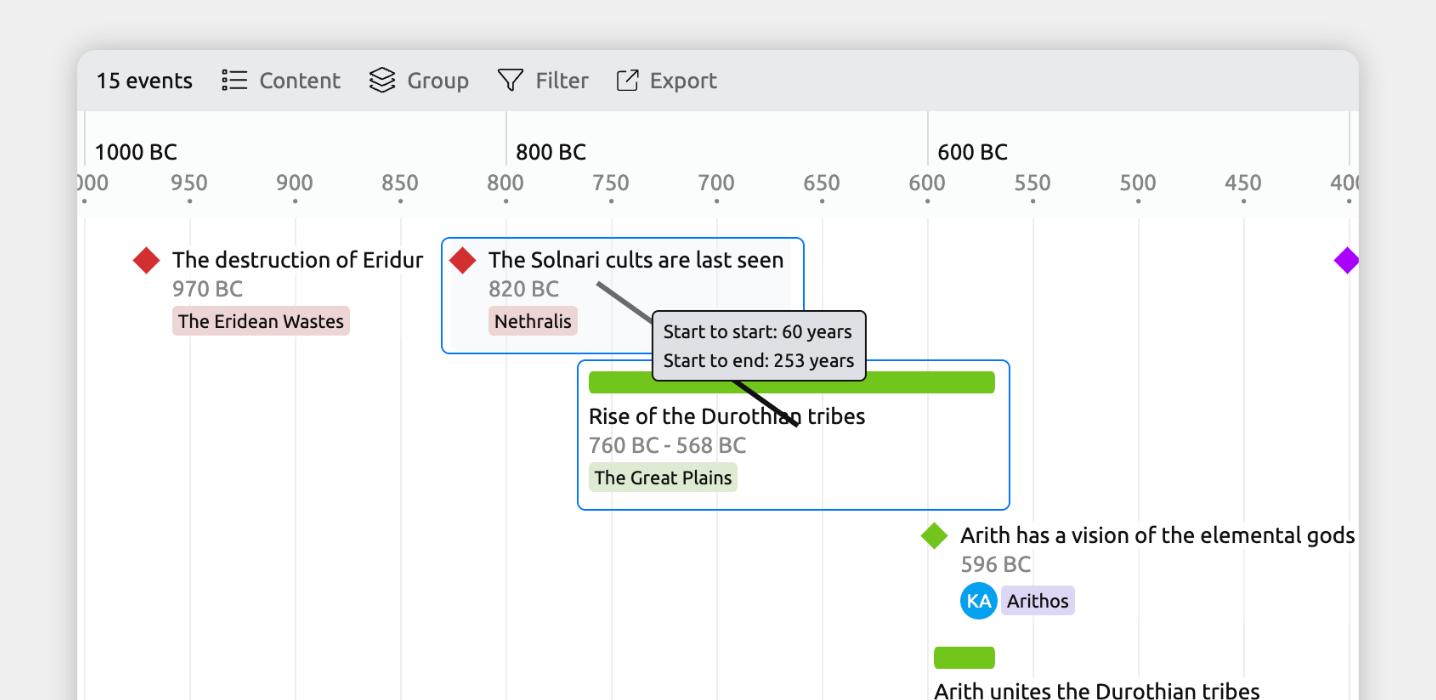
You can quickly measure the time between two events or items directly in the Timeline view.
- Select or create a tab set to the Timeline view.
- Hold:
- Option + Shift (Mac), or
- Alt + Shift (Windows)
- Click and drag from one event or item to another on the timeline.
- A message appears showing the time difference between the two items.
Measure Time Between Related Events and Items in the Inspector
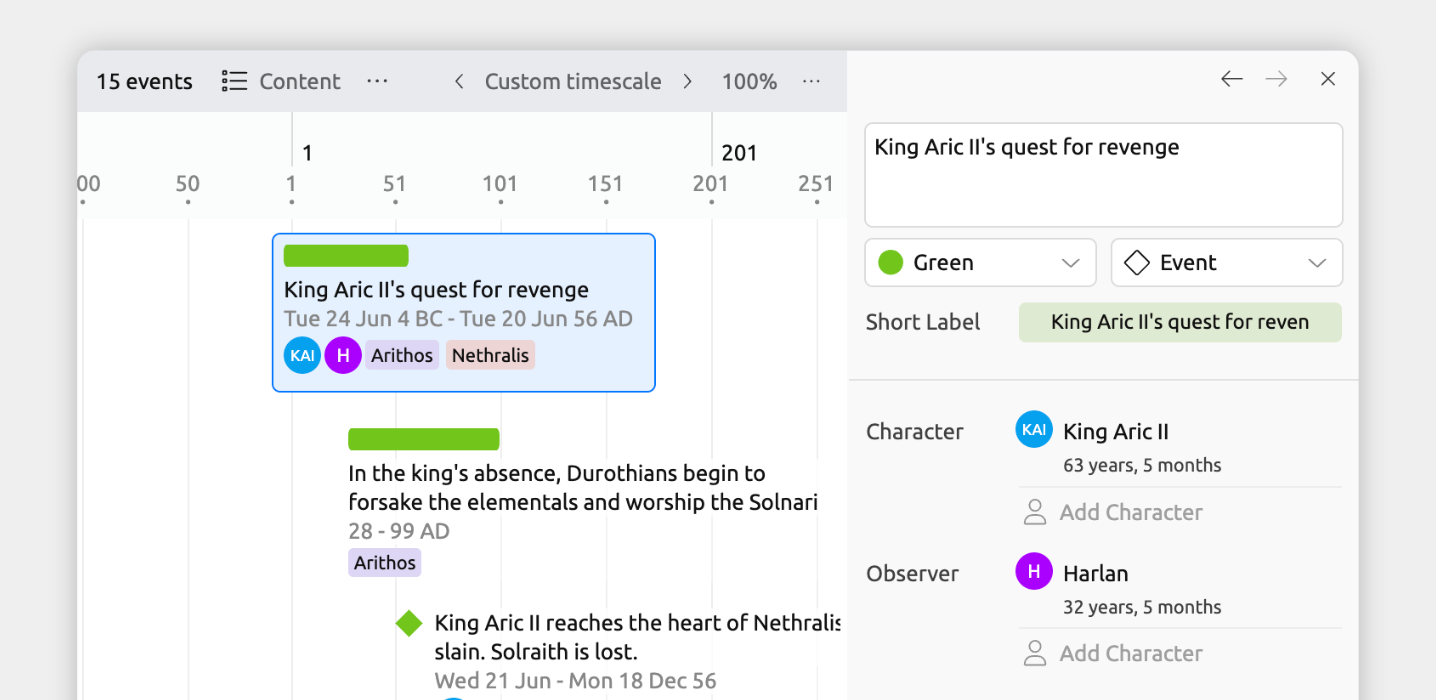
You can see the time between two related events or items directly in the inspector.
Before you start, make sure both events or items have dates.
Then to relate them:
- Select one of the events or items.
- In the inspector, find the relationship field you want to use.
If the field isn’t shown, scroll to the bottom of the inspector and click Add and Edit Fields to add it. - Click Add, then select the second event or item to relate.
If both items have dates, Aeon Timeline automatically shows the time difference between their start dates in the relationship field.
See Time Differences for All Relationships in the Relationship View
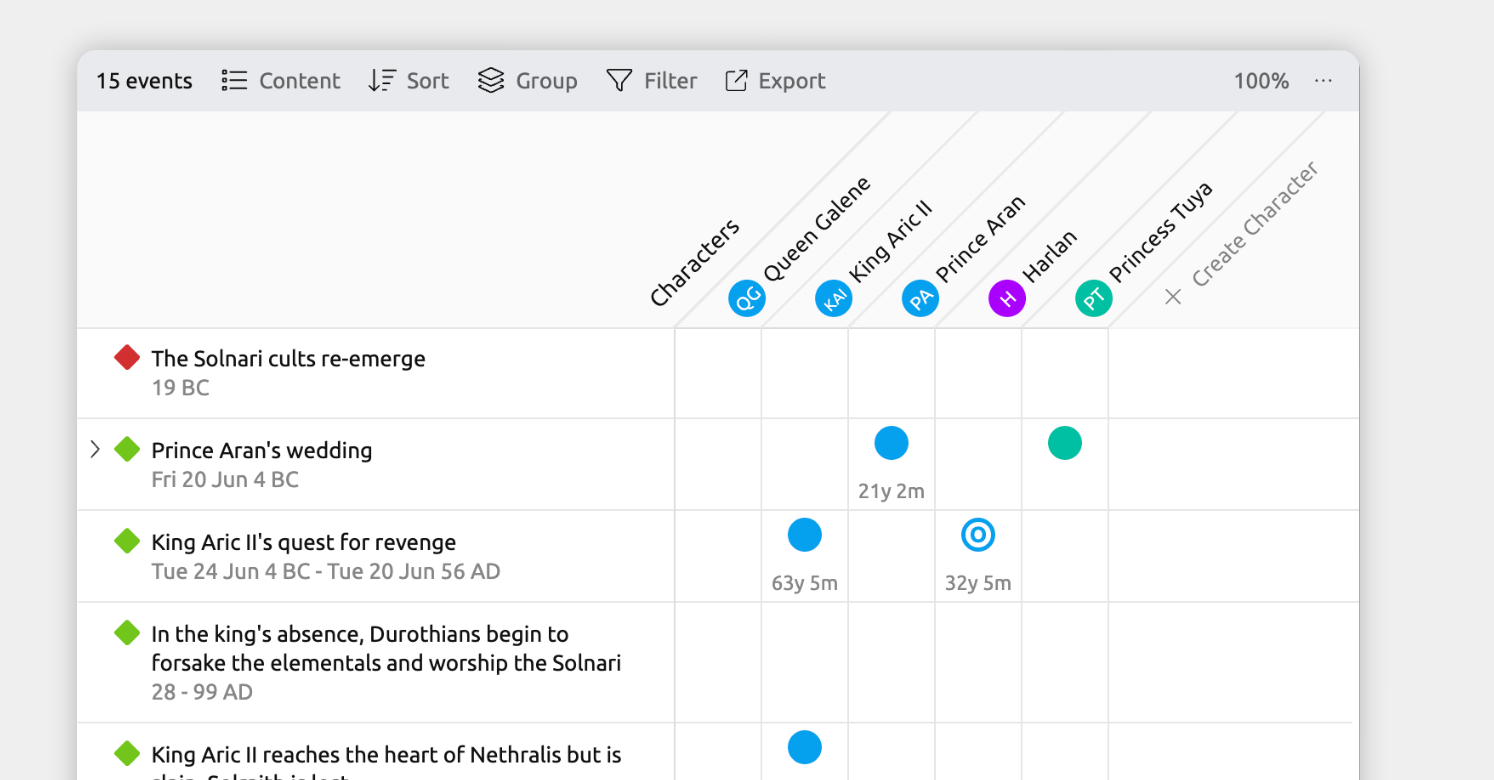
The Relationship view is a great way to see multiple ages or time gaps at once, without measuring them one by one.
Each intersection shows the relationship between the item in the row and the item in the column. When both items have dates, the intersection also shows the difference between their start dates.
- Select or create a tab set to the Relationship view.
- Open the Content panel in the view header.
- Choose which items appear as rows and which appear as columns.
- Close the Content panel.
- Click the intersection between the row and column you want to connect.
- Choose the relationship type to add.
If both events or items have been given dates, the time difference between them will be shown within the intersection.
Where to Next?
Compare Timelines
See how to compare parallel timelines of events.
Categorize and Group Events and Items
Learn how grouping can help you organize events and items into clear, related sections.
Try Aeon Timeline free for 14 days
Get Aeon Timeline and easily visualize and organize your project.