
Intro to Views and Tabs
Aeon Timeline’s view types let you switch how you work without switching tools. You can plan on a timeline, edit details in a table, explore relationships, or organize your story narrative, all using the same data.
This guide explains how views and tabs work, how changes carry across the app, and what each view is best used for.
What is a View?
A view determines how your timeline data is presented.
All views work with the same underlying data, but present it in different ways — for example, as a timeline, a table, or a set of cards.
Aeon Timeline includes the following view types:
- Timeline: A visual timeline laid out across time.
- Spreadsheet: A table for easy viewing and editing.
- Relationship: A grid showing how events or items are connected.
- Subway: Parallel tracks that show related events running through time.
- List: A simple, ordered list of events or items.
- Mindmap: A freeform canvas for arranging events, items, and connections.
- Narrative: Cards used to organize your story.
How Data is Shared Between Views
Views don’t duplicate information, they simply present it in different ways. This lets you switch perspectives without re-entering or copying anything.
That means:
- The same events and items can appear in multiple views.
- Editing an event or item in one view updates it everywhere.
At the same time, each view lets you choose what data it shows.
You can control things like:
- Which item types are visible.
- How much detail is shown for each event or item.
- In some view types, which specific items are included.
This means you can create views that show a complete overview of your project, or ones that focus on only the items or details that matter for the task at hand.
Create and Manage Tabs
The tab bar sits at the top of the app and lets you choose, organize, and navigate between views.
Create a New Tab
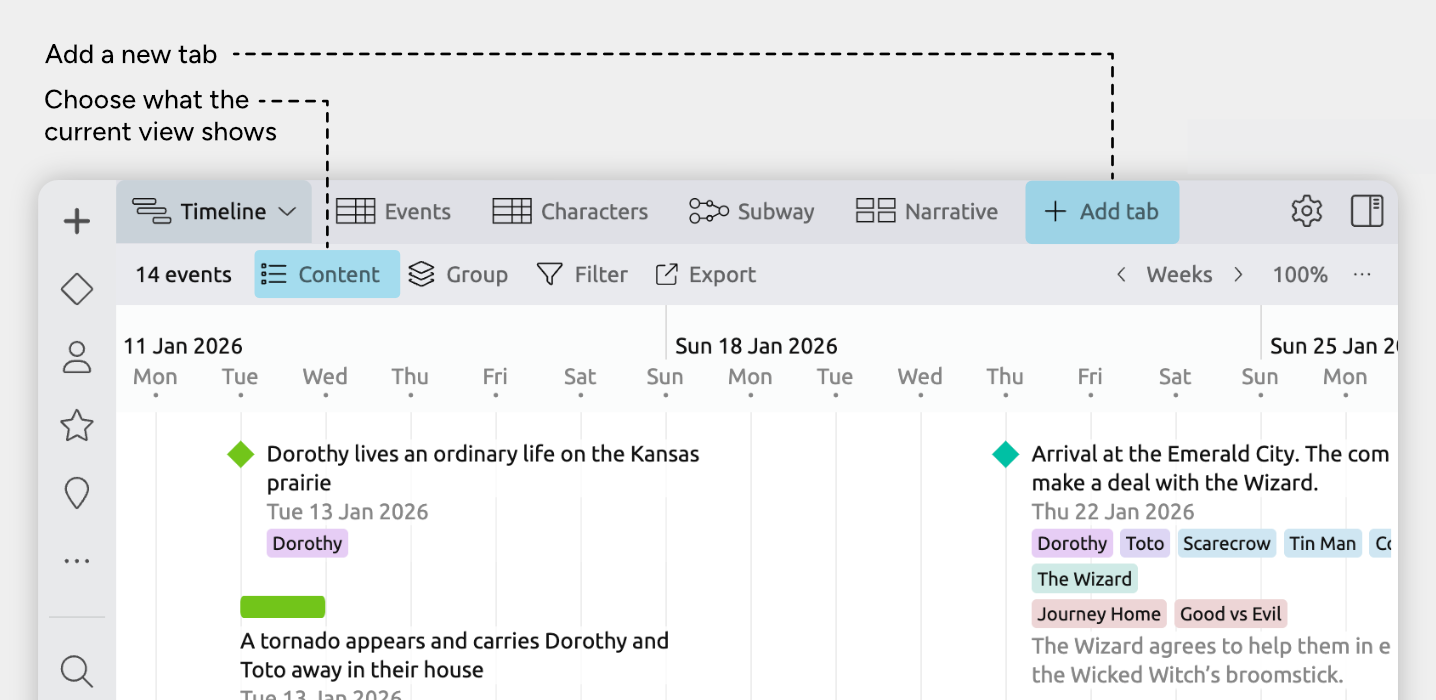
- Click the + Add Tab button at the end of the tab bar.
If you have more tabs that can fit on the screen, this may be within a More dropdown menu at the end of the tab bar. - Select the view type you’d like to create. A new tab will be created.
- Open the Content panel in the view header to customize what is shown.
Rename a Tab or Change its Icon
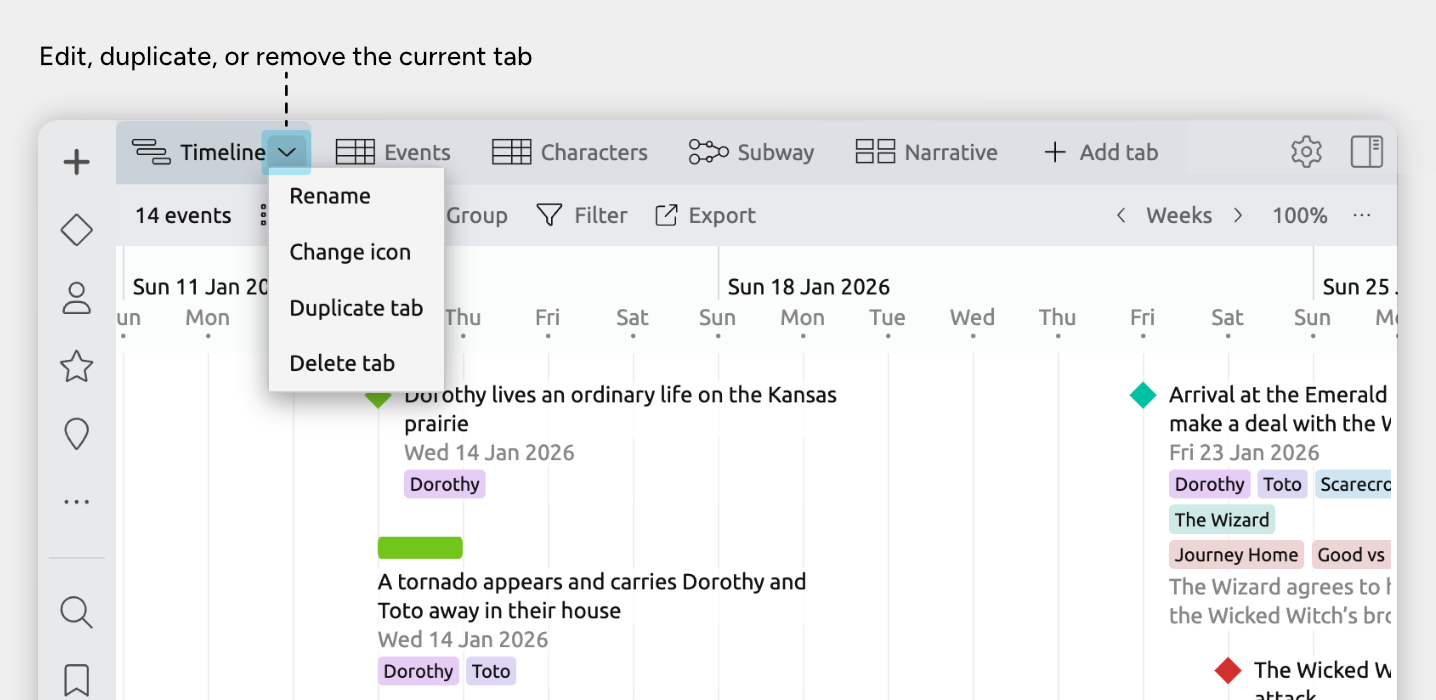
- Select the tab you want to change.
- Click the tab’s down arrow.
- Choose Rename or Change Icon.
Where to Next?
Learn more about the different views:
Try Aeon Timeline free for 14 days
Get Aeon Timeline and easily visualize and organize your project.