
The Narrative View
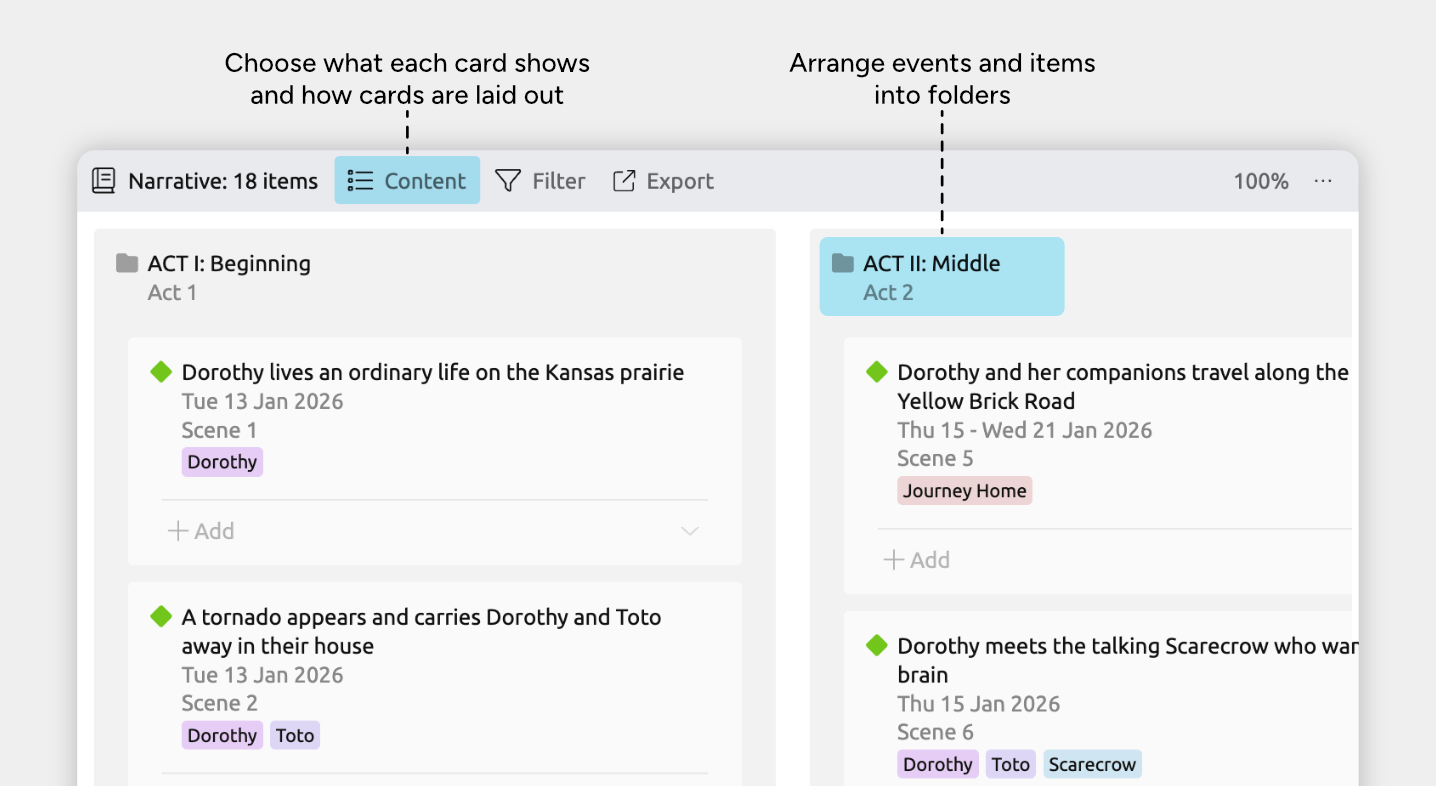
The Narrative view is made up of ordered cards that represent your story structure. The view is only available when you’re working in narrative order.
The narrative lets you create a separate order for your story, organizing events as they appear in your novel or project rather than by date. You can arrange selected events or items in any order and place them into folders that represent acts, chapters, or other sections.
Each card in the Narrative view represents either a folder (such as a chapter or act) or a story event.
This article covers how to customize and use the Narrative view. If you’d like more background on what the narrative is and how it works for story planning, see Organize a Separate Story Structure →
Customize Content
Choose Which Item Types Can Be Added
The narrative always allows you to add folders to organize your story. You can also choose which item types—such as Events or Backstory items—can appear in the narrative.
To customize which item types are available:
- Open Settings
- Select the Narrative tab
- Under Allowed Item Types, choose the item types you want to include
Only the selected item types will be available to add as cards in the Narrative view.
Customize Card Details
- Open the Content panel in the view header.
- Under Fields, click fields to show or hide them on timeline cards.
- (Optional) Under Card options, adjust Max Lines Per Text Field to limit how much text can be shown.
Tip: If you choose to show items’ positions in the narrative (like Act 2, Scene 1), you can also customize what section labels are used. Learn more →
Customize Card Arrangement
You can choose how cards are laid out in the Narrative view. Cards can either stack vertically, or use a mix of vertical and horizontal stacking. The deeper your folder structure, the more useful horizontal stacking becomes, as it helps spread nested levels across the view.
- Open the Content panel in the view header
- Open the Narrative Layout section.
- Choose the layout option you prefer
Add Events, Items, and Folders
The Narrative view includes Add buttons that let you insert a new event or folder exactly where you want it in the story order.
You can use these buttons to either create something new or include an existing item from your timeline.
Add a New Event, Item, or Folder
- In the Narrative view, click an Add (+) button at the position where you want the card to appear.
- Choose whether to add a Folder or a new Event (or other allowed item type)
- Type a label and press Enter.
Add an Existing Event or Item to the Narrative
You can also add events or items that already exist elsewhere in your timeline, as long as their item type is allowed in the narrative.
- In the Narrative view, click an Add (+) button at the position where you want the card to appear.
- Under Add Existing Item, select the item you want to include
- The item appears as a card at that point in the narrative order
Adding an existing item places it into the narrative without duplicating it—any edits you make to that item are reflected everywhere it appears.
Rearrange Events, Items, and Folders
In the Narrative view, you can experiment with your story structure by moving and nesting cards.
You can drag and drop cards to:
- Reorder folders and events.
- Nest and arrange events into acts, chapters, sub-scenes, or other story structure.
These changes affect only the narrative order. Your timeline dates and hierarchy in other views remain unchanged.
Remove Events and Items from the Narrative
To remove an event or item from the narrative only, but keep it in your project:
- Select the event or item to open the inspector.
- Find the Narrative field.
If it isn’t shown, scroll to the bottom of the inspector and click Add and Edit Fields to add it. - Click Remove from Narrative.
Note: Deleting an event or item from the bottom of the inspector removes it entirely from both the narrative and the timeline.
Where to Next?
Organize a Separate Story Structure
Use the narrative order to plan acts, chapters, and other story structures. Learn how to group events and items into folders, and keep a story order of events that's separate from the timeline.
Try Aeon Timeline free for 14 days
Get Aeon Timeline and easily visualize and organize your project.